
 OpenPost
Color and effects
Crop images, adjust a layer or page, add effects, and remove backgrounds.
Select an image layer to crop it or make a quick correction. Open Color when you need the same controls across a full page or want wheels, curves, scopes, and before-and-after comparison.
Crop and adjust one image
In Properties, open Crop to choose the visible part of the source. The original file remains unchanged.
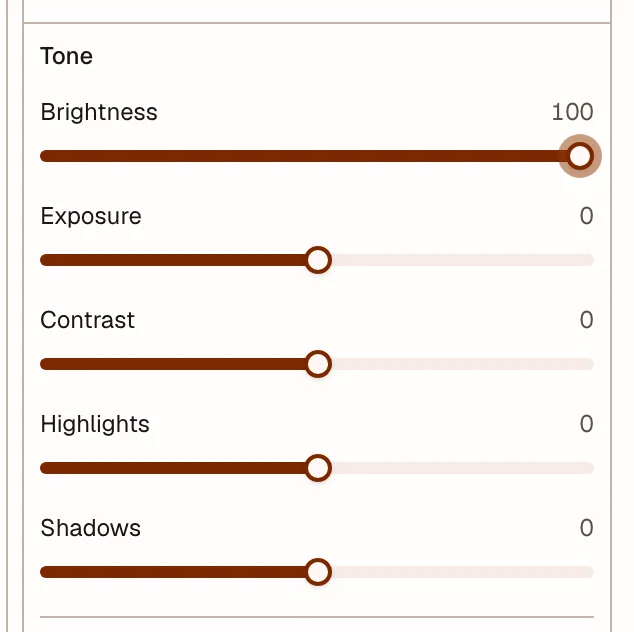
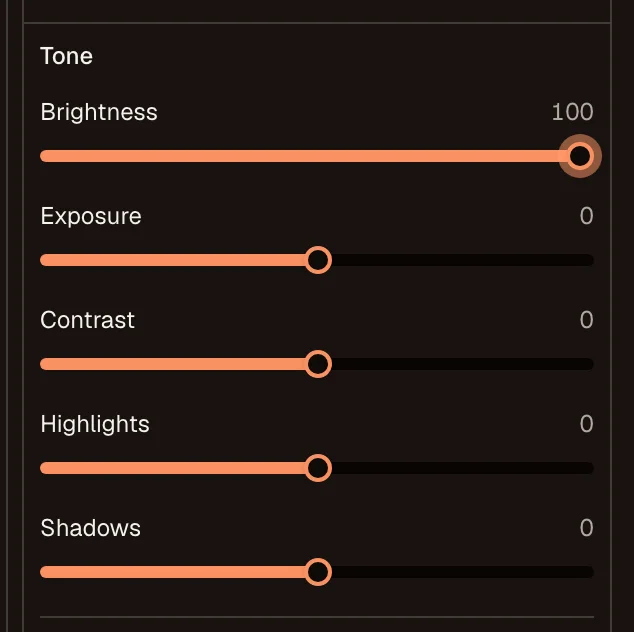
Use a quick look such as Warm, Cool, or Mono, or adjust tone and color yourself. Available controls include brightness, exposure, contrast, highlights, shadows, temperature, tint, vibrance, saturation, hue, and blur.
Grade a layer or page
Open Color, then choose the scope:
- Layer changes the selected unlocked image layers.
- Pages changes the combined page output once, after its layers are composed.
Start with a preset or the basic tone and color controls. Use Lift, Gamma, Gain, and Offset wheels for tonal ranges. Use curves for the master, red, green, or blue channel. The scopes report the current image while you work. Compare Before and After, then reset the section or the full grade if needed.
Add layer effects
Properties can apply blend modes, strokes, drop shadows, inner shadows, and shape masks. Effect controls vary by layer type. A mask changes the visible shape of an image or shape layer without changing its source.
Keep effects tied to the job the design must do. Check text and logo edges at the final export size, not only while zoomed into the canvas.
Remove an image background
Select an image layer and choose Remove background. The feature loads only when you use it and processes the image in your browser. It uses graphics hardware when available and the processor when needed. It does not send the image to another background-removal service.
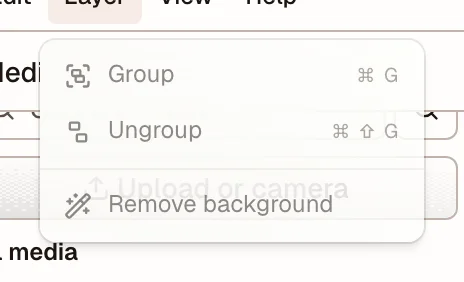
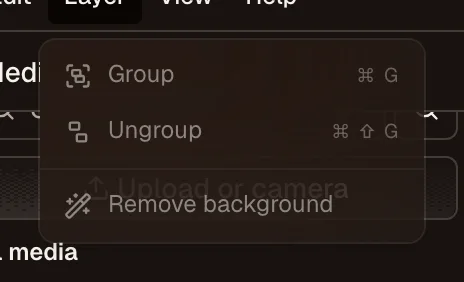
The result is a new transparent PNG in Media. You can undo the layer change. OpenPost may process a smaller temporary copy for a large image without changing the original file.