
 OpenPost
Create a design
Start from a social format, template, workspace file, or post.
Choose the starting point that matches where the finished image needs to go.
Start without signing in
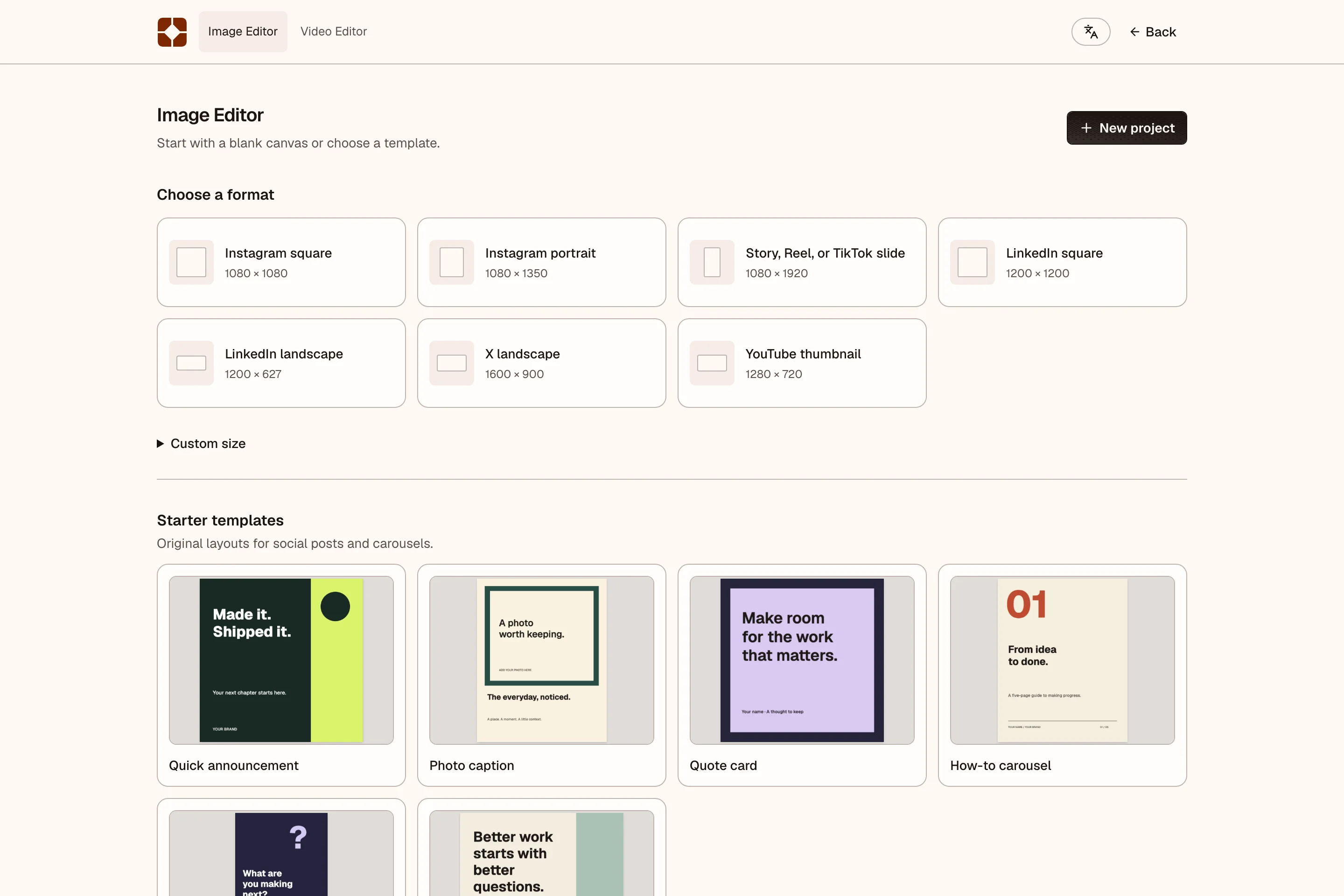
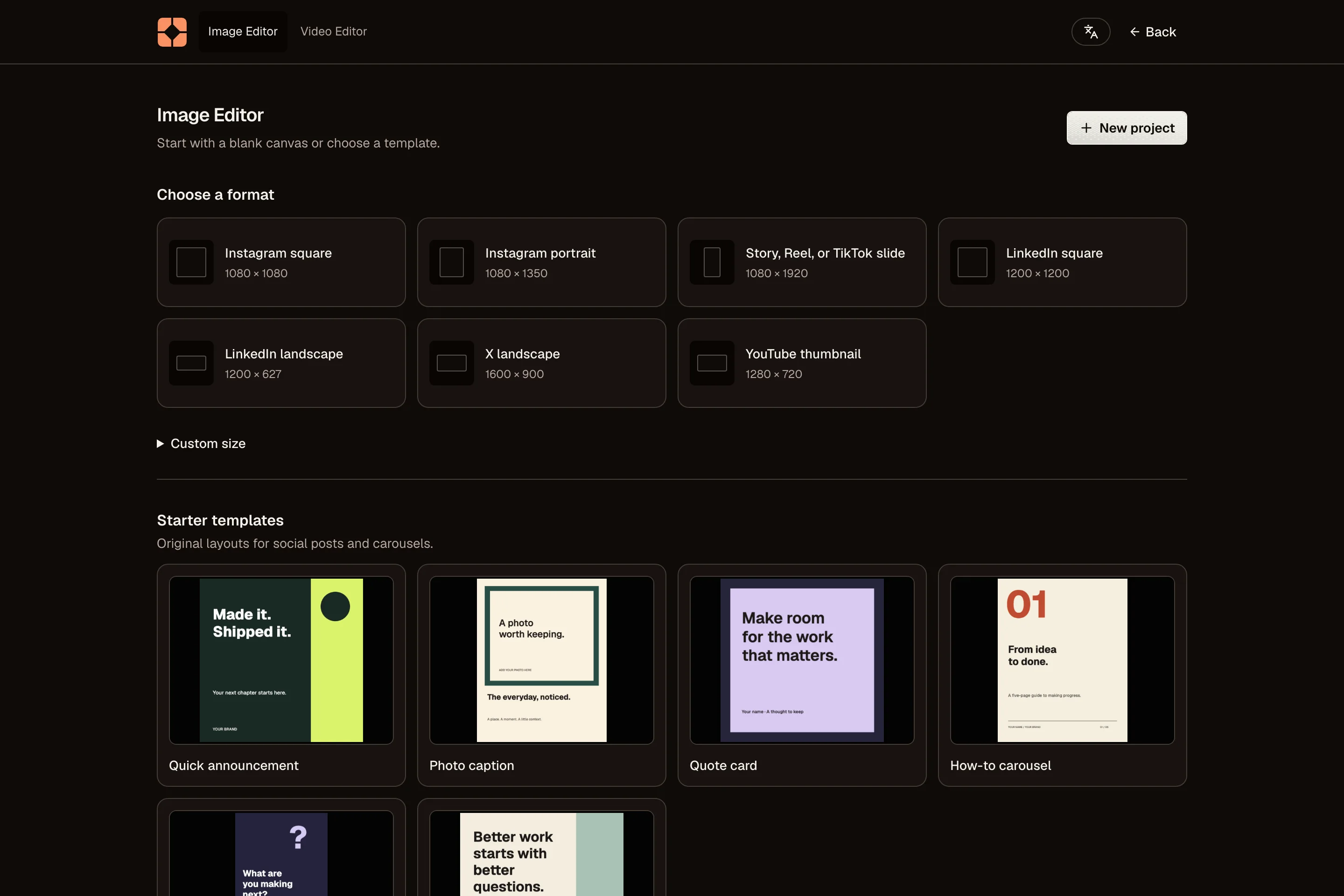
Open the public Image Editor. Pick a social format, choose a starter template, or import a PNG, JPEG, or WebP image.
Public designs and imported files stay in this browser. Use the same device and browser to return to them. Clearing site data or using private browsing can remove local work.
You can export at any time. To keep the editable design in a workspace, choose Save to OpenPost and sign in or create an account. OpenPost copies the design and its images into the selected workspace. The browser copy stays on the original device.
Start in a workspace
Open Media → Create → Create design. You can also open an image in Media and choose to edit it. The original file stays unchanged, and the editor creates a separate design.
Workspace designs autosave to OpenPost and can be reopened from Media. They can use workspace media, templates, brand colors, and brand fonts.
Start from a post
In a post's media picker, open Create and choose Image Editor. OpenPost saves the draft before leaving the composer and remembers where the finished files belong.
When you are done, Export and attach returns the files to the same post, thread part, or thumbnail field. The editor checks the selected account limits again before attaching them.
Choose a useful size
Use a social preset when the design is for one known placement. Use custom dimensions when you already know the required pixel size. A design keeps one width and height across all its pages, so create a separate design for another aspect ratio.
After the design opens, add content from Media or upload another image. Set a solid, transparent, gradient, or image page background, then add text, images, shapes, or paint layers.