
 OpenPost
Video Editor

Turn recordings and source clips into finished social videos.
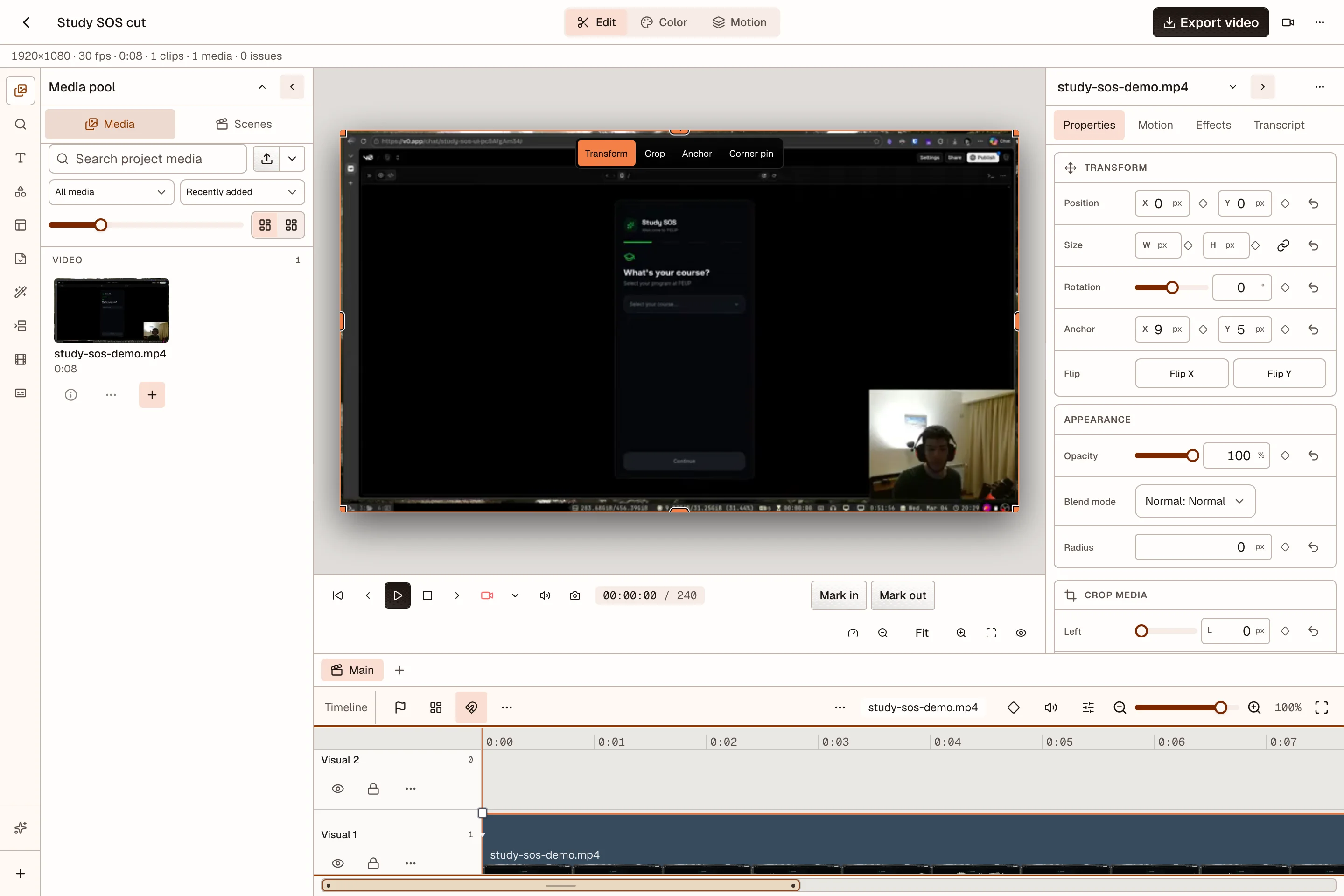
Open Video Editor in a current desktop version of Chrome or Edge. Choose a format, add your clips, edit on the timeline, then export the finished file. OpenPost does not add a watermark.
Choose the right tool
- Video Editor changes the picture, sound, timing, captions, motion, or effects.
- Quick Cut keeps selected ranges without changing their picture or mix. It can avoid re-encoding when the source allows it.
- Recorder captures your screen, camera, and microphone as synchronized files for an edit.
Follow the editing flow
- Start a project and choose where it will be saved.
- Import media and edit the timeline.
- Adjust color, motion, and effects.
- Clean up speech, captions, and audio.
- Export the video and use it in a post.
Editing and rendering run on your device. A project saved to OpenPost syncs its authored edit and required original Project Assets to the current Workspace. A local-only project stays in a folder you choose.