
 OpenPost
Transcript, captions, and audio
Edit spoken sections, add captions, and keep speech clear.
Transcribe speech
Select a source clip and start transcription. It runs on your device. Parakeet is the default on supported WebGPU devices. Whisper Tiny, Base, Small, and Large v3 Turbo are also available. The chosen model downloads the first time you use it and remains cached until you remove it in Models or clear site data.
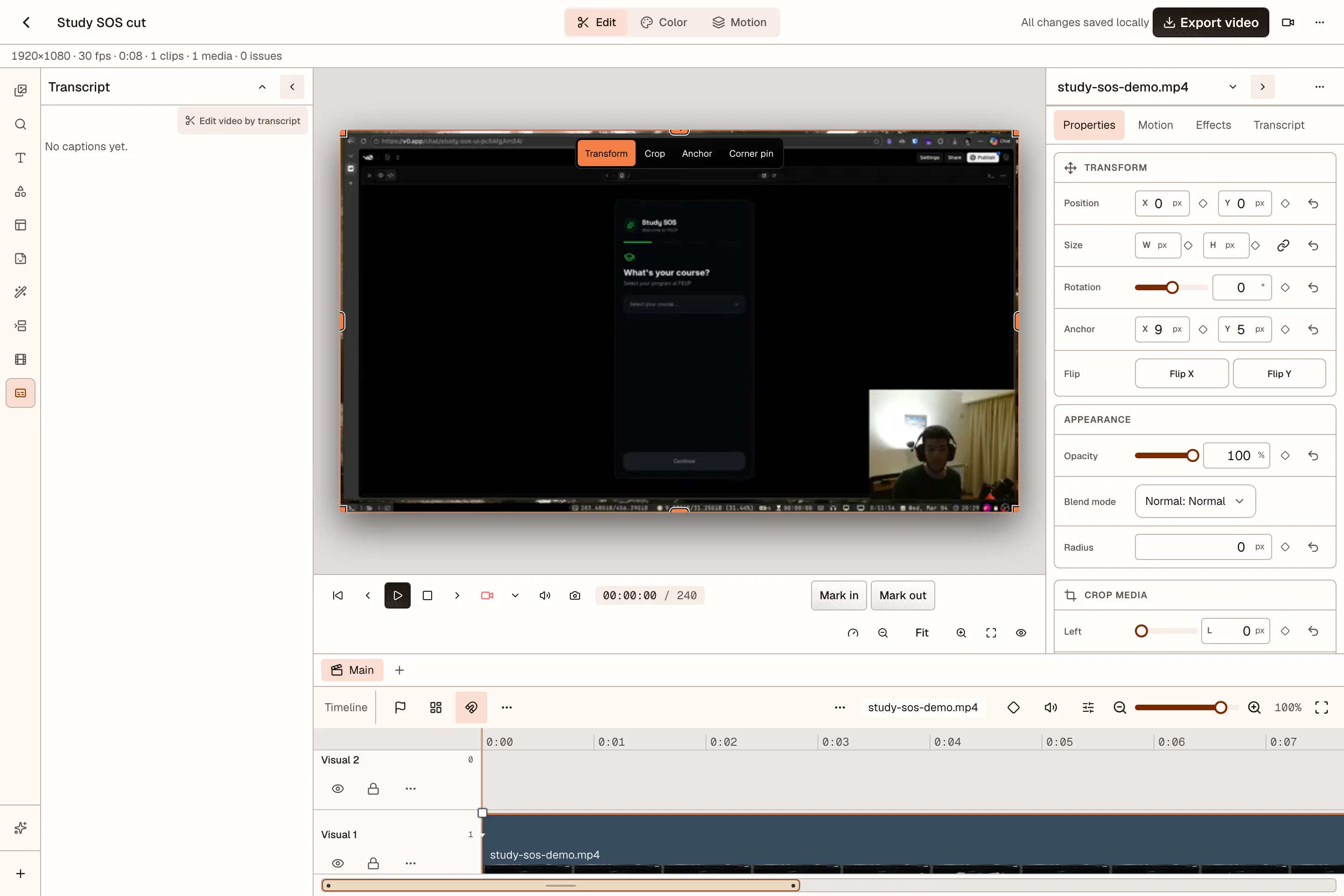
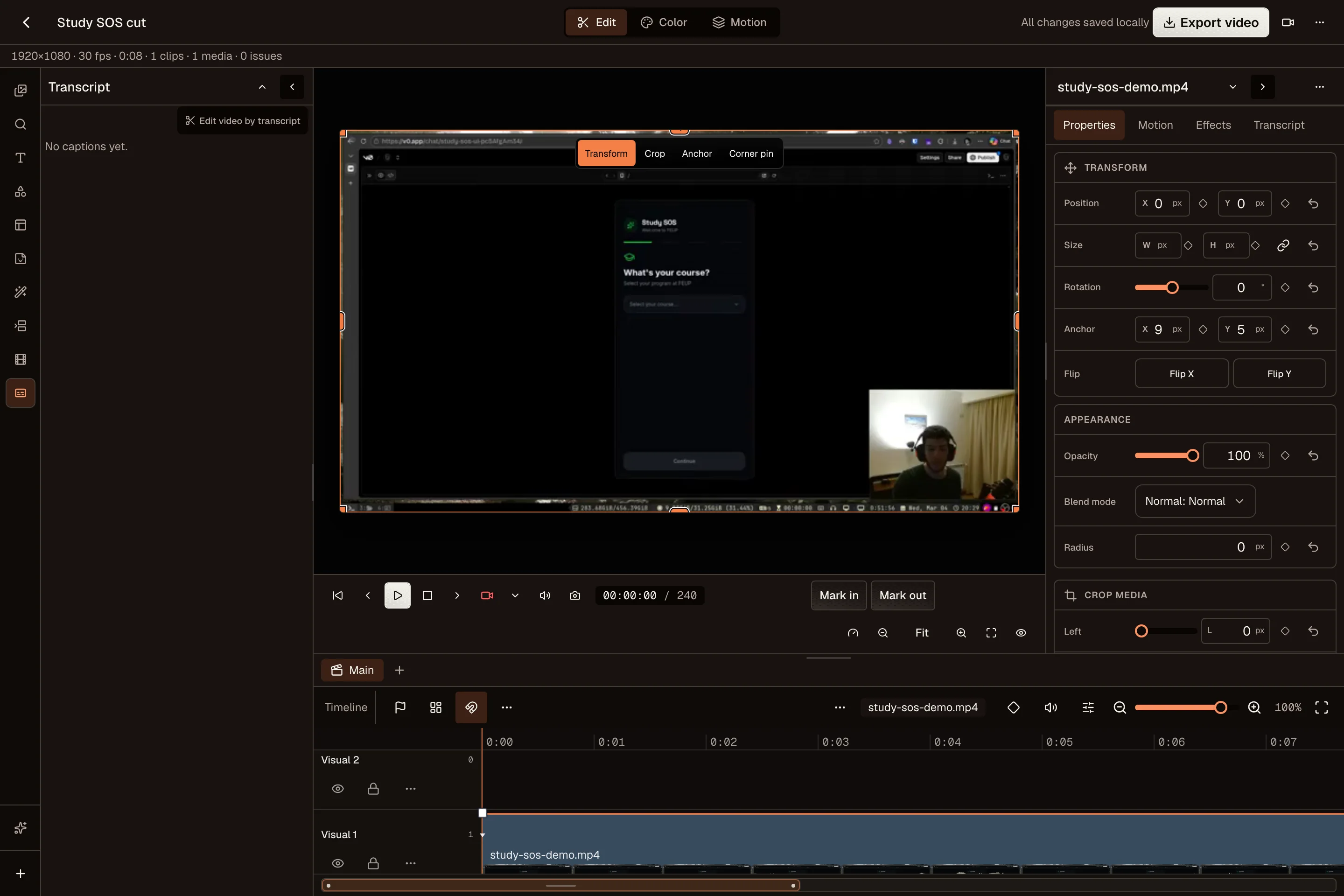
Read the transcript before editing from it. Correct a word to update its timed caption. Select words to stage matching media ranges, review the strikethrough, then apply the cut once. Silence and filler-word suggestions show how much time they would remove before you accept them.
Choose the caption output
Captions can be burned into the picture or exported as SRT or VTT sidecar files. A supported output container can also carry a selectable subtitle track. Review spelling, timing, and line breaks in the preview before export.
Mix speech and music
Keep voice and music on separate tracks. Lower the music under speech and add fades where it enters or leaves. Mute and solo tracks to find a problem. Loudness and ducking controls can help keep speech clear, but listen through the whole passage before export.
Use Record voiceover to capture narration while the sequence plays. The recording becomes project media and can be trimmed like another audio clip.
Transcription and voice tools depend on the browser, device, and available local storage. If a model or capture option is unavailable, the editor explains the missing requirement.