
 OpenPost
Color, motion, and effects
Change the look of a clip and animate visual layers.
Use the dedicated workspace for the kind of change you are making. This keeps grading controls, keyframes, and the normal clip inspector from competing for the same space.
Adjust color
Open Color, then select the clip or sequence grade you want to change. Scopes show the balance of light and color. Primaries, wheels, and curves control the grade. You can also sample a neutral, black, or white point from the current preview frame.
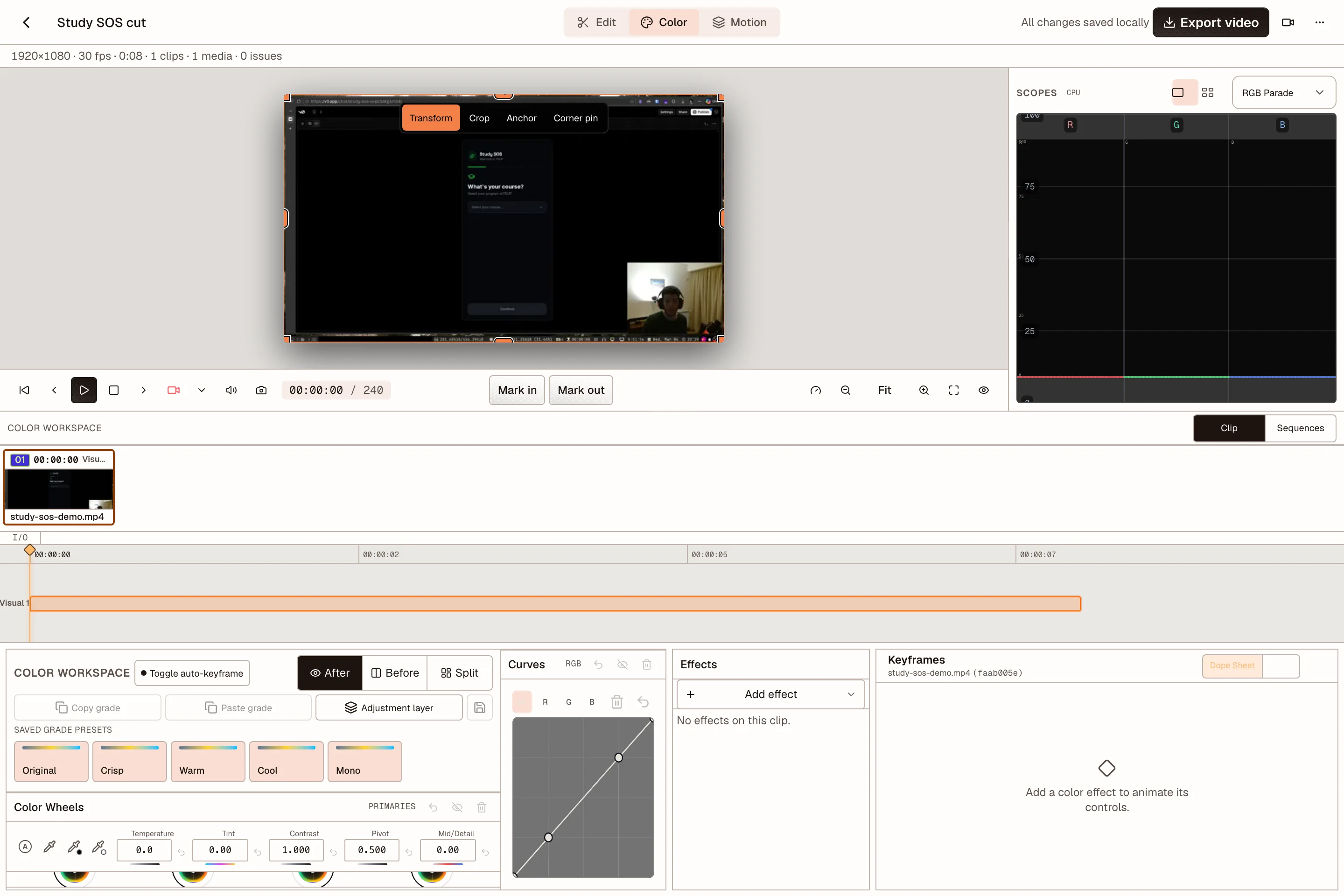
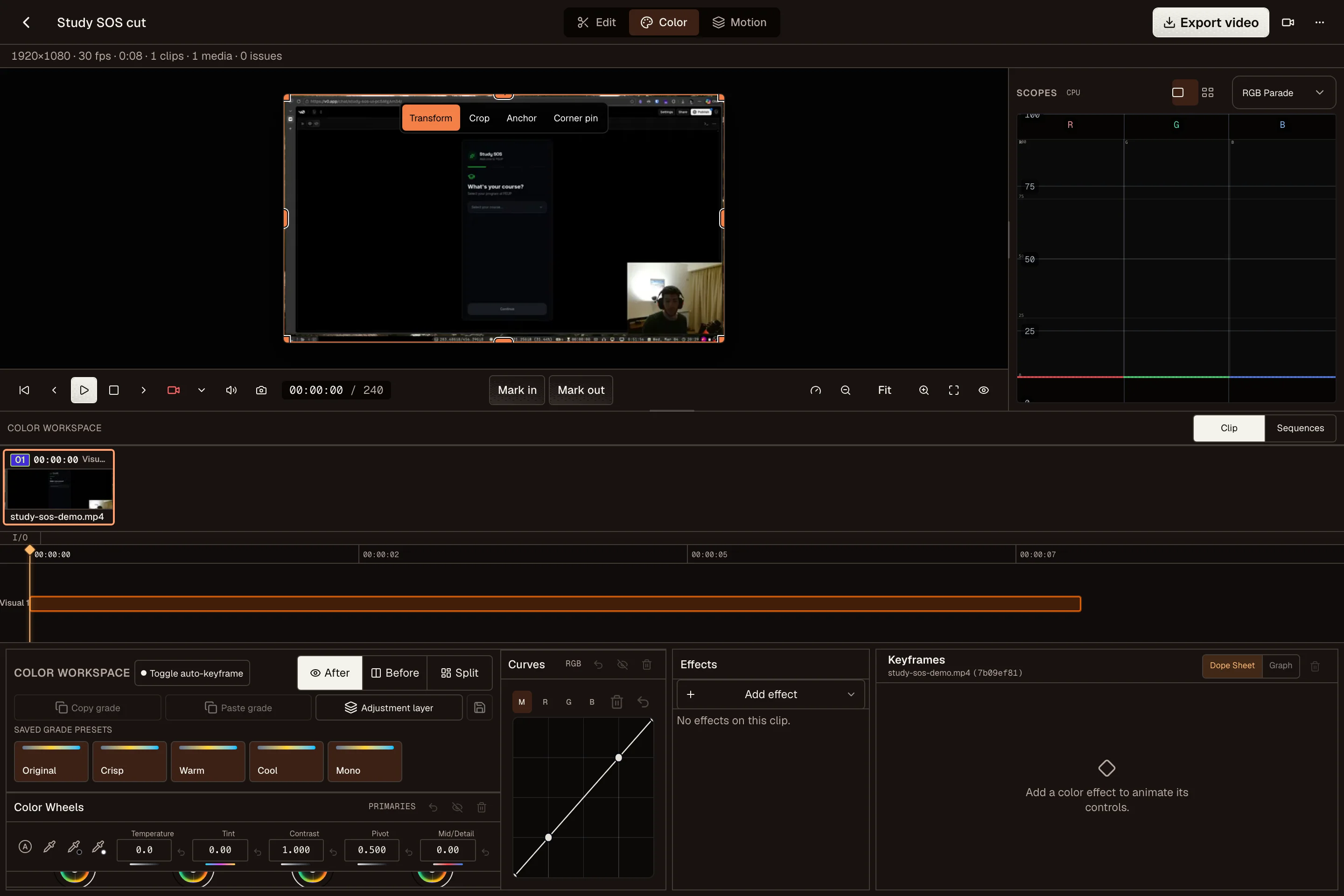
Use Before, After, or Split to compare the result. Copy and paste a grade between clips, save a grade preset, or use one sequence grade when the whole edit needs the same finish.
Animate a layer
Open Motion to animate text, shapes, images, video, and supported effect controls. Create or open a composition, set a keyframe, move the playhead, then change the value. The Dope Sheet shows timing and the Graph view controls easing.
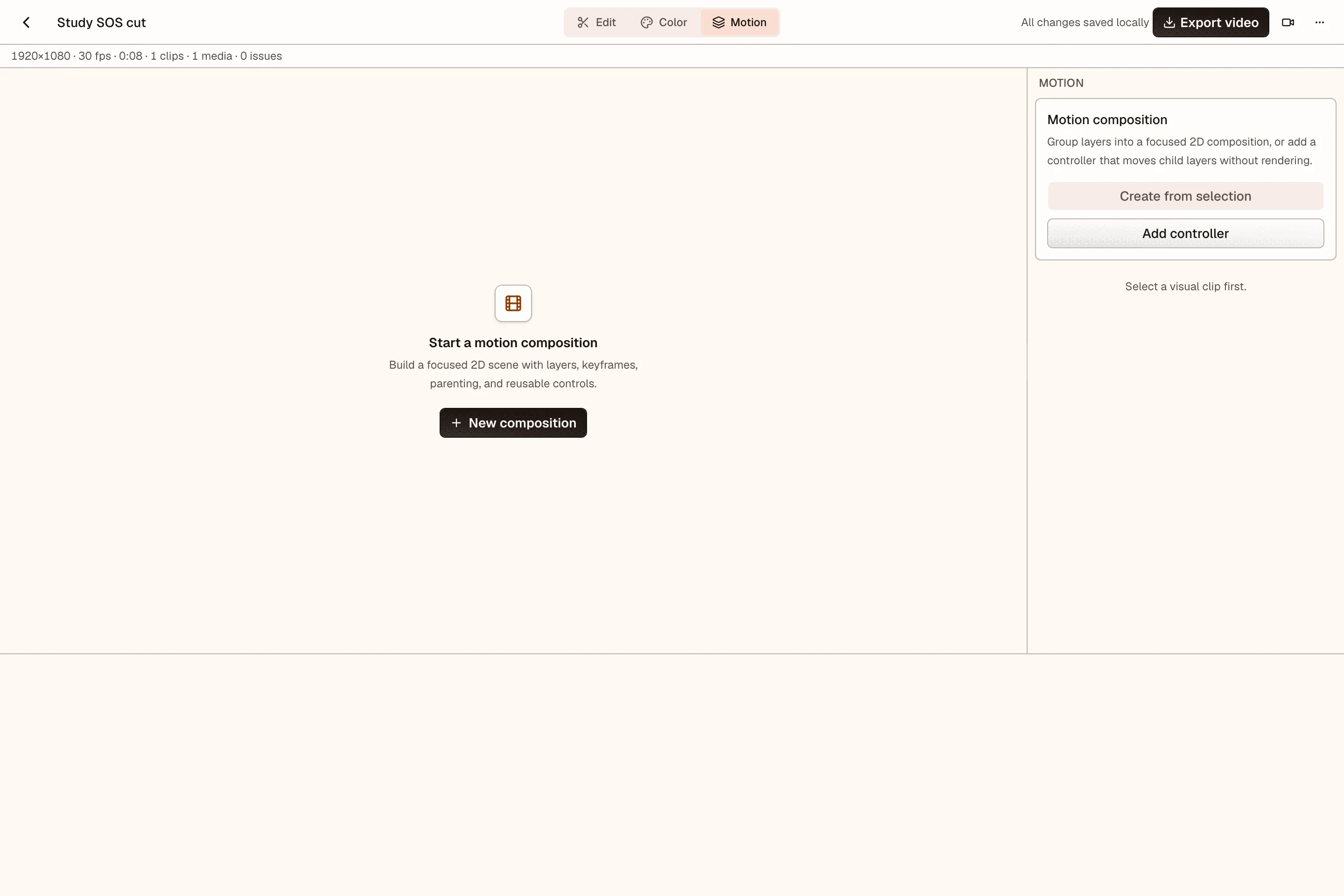
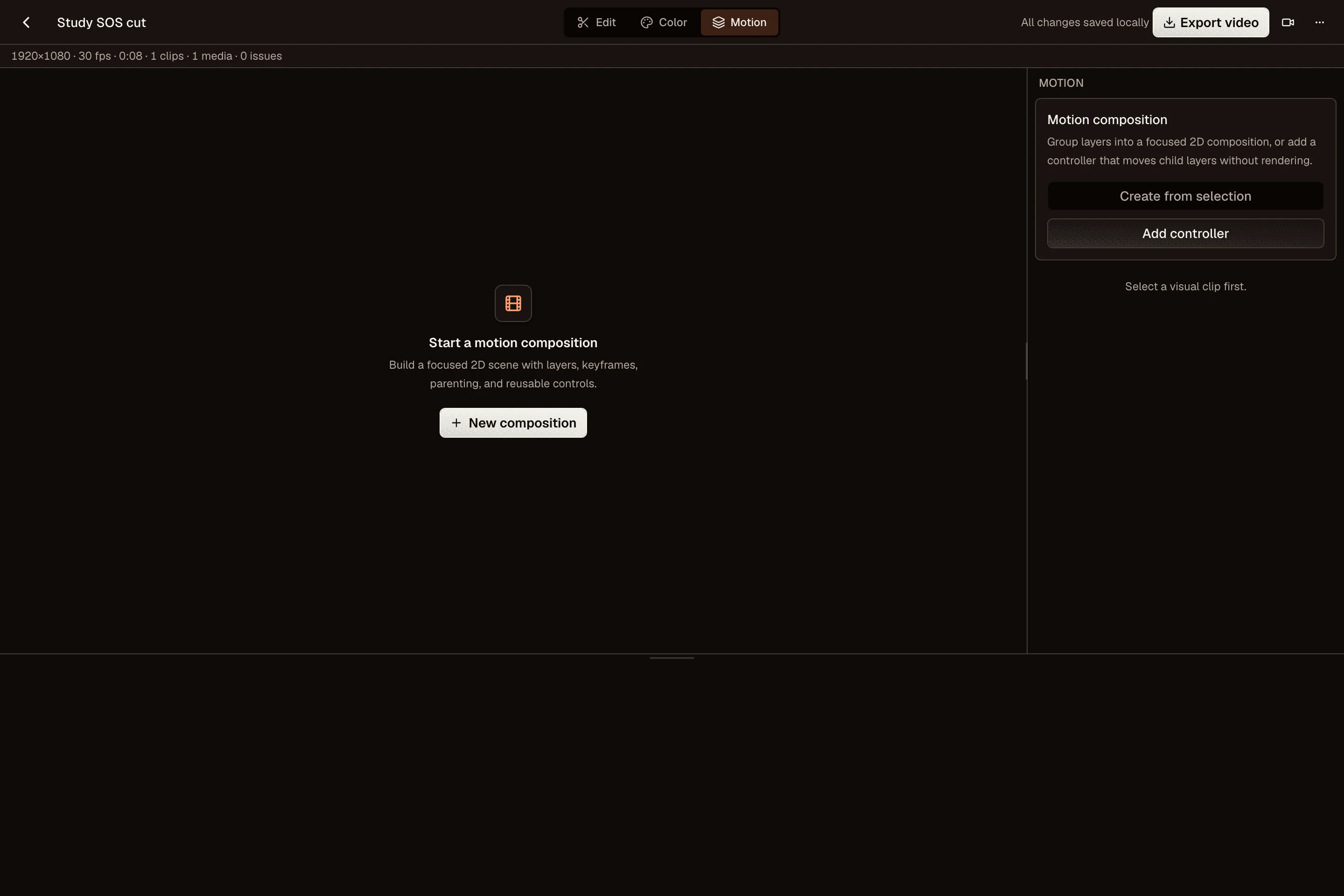
Example: to slide a title in, place it off screen at the first position keyframe. Move one second forward, place it at rest, then play the range and adjust the easing.
Add effects and transitions
Open Effects in the left panel. Select a clip, then add a preset, or drag it onto one or more timeline clips. The inspector lets you reorder, disable, remove, reset, and keyframe supported effect parameters. You can save the current stack as your own preset.
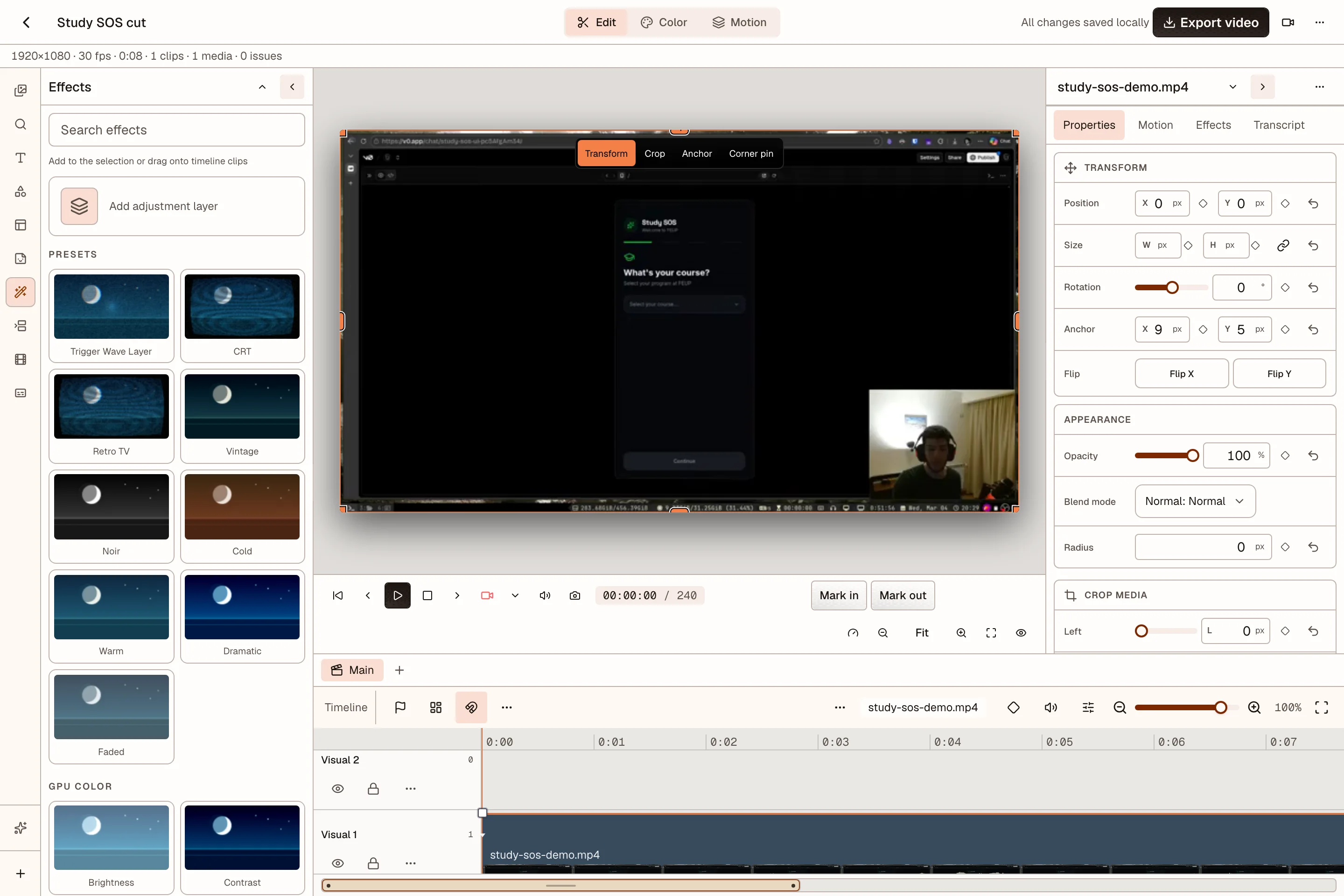
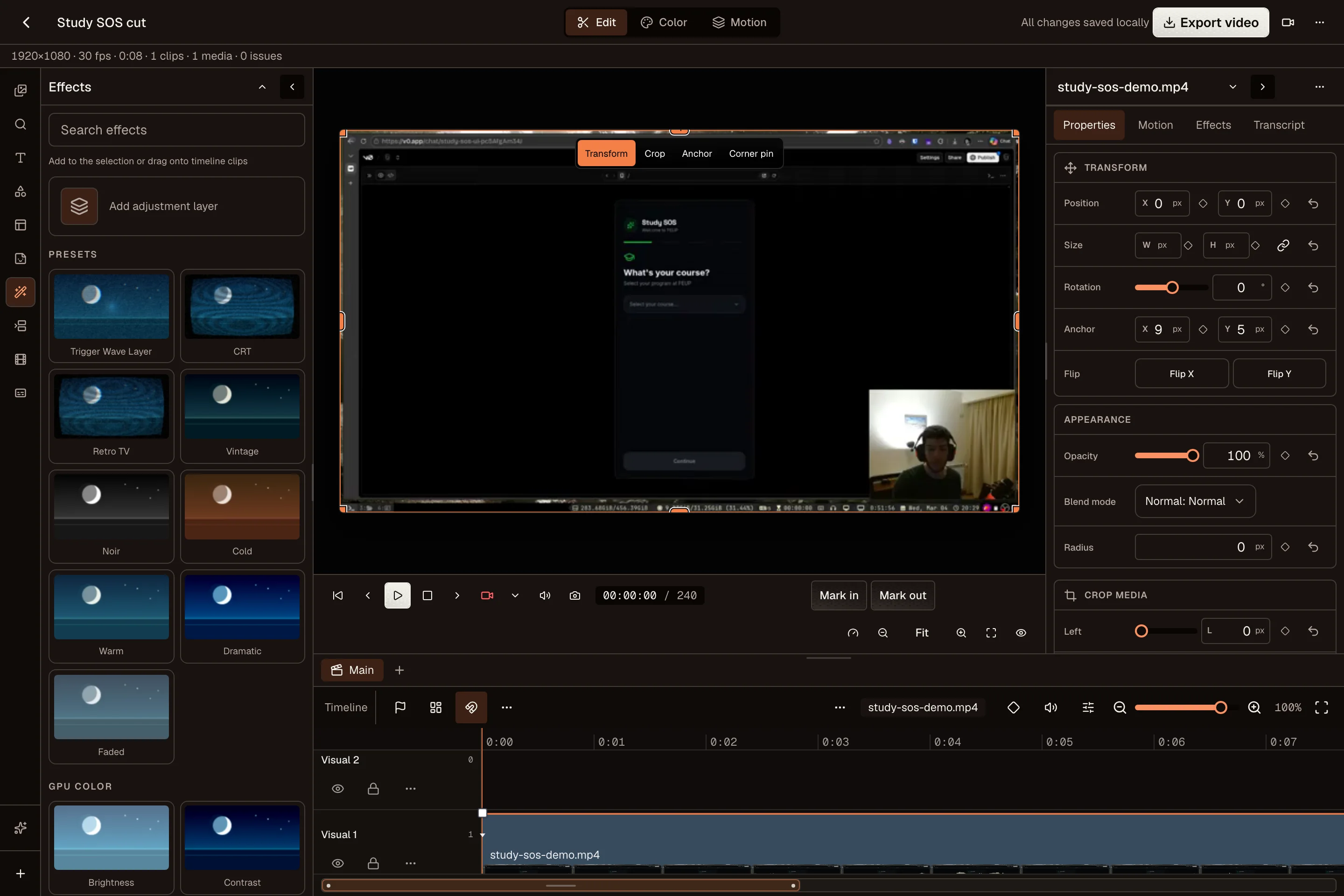
Use an adjustment layer when one effect or grade should cover several clips below it. Add a transition only after checking the cut without it, then play the whole transition before export.