
 OpenPost
Edit on the timeline
Arrange, trim, split, and review clips without changing the originals.
Place clips in the order you want, then play the sequence before making detailed changes.
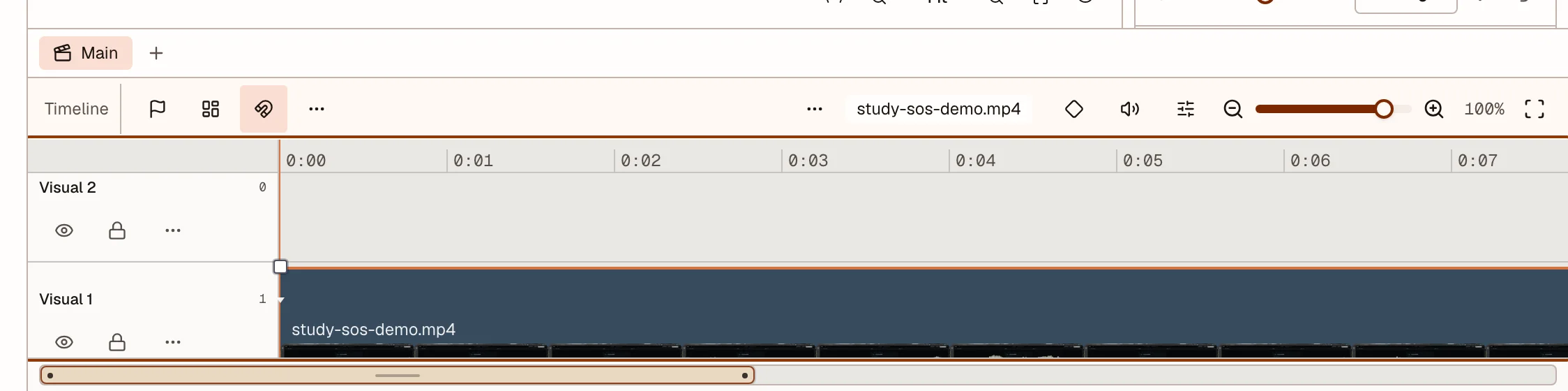
Make the basic cuts
- Drag a clip edge to trim its start or end.
- Move the playhead and choose Split at playhead to cut a clip.
- Delete a selection to leave a gap.
- Use Ripple delete to remove it and close the gap.
- Set In and Out points to preview or export only part of the sequence.
Example: if a recording starts with three seconds of silence, drag its left edge until speech begins. Play across the new start before continuing.
Work with tracks
Keep picture, music, voice, captions, and adjustments on separate tracks when you need to change them independently. Lock a track before editing nearby clips. Mute or solo tracks while checking the mix.
Linked video and audio move together until you unlink them. The editor rejects a move when its target is locked, incompatible, or already occupied.
Review the picture
Use the source monitor to mark a useful range before adding it to the sequence. Use the program preview to check the assembled timeline. Canvas guides and snapping help position text and visual layers.
Play across every cut after changing speed, a transition, or an effect. Preview uses the same effect rules as export, but the export readiness check remains the final test of codec and source support.
Undo and use shortcuts
Undo and redo cover timeline edits. Open Editor settings to search, change, import, export, or reset keyboard shortcuts. The editor warns when a shortcut conflicts with another command or a browser action.
For repeated sections, create a nested composition. Published composition controls can expose selected text, color, number, toggle, or media values for each instance.