
 OpenPost
Export and publish
Download images, save them to Media, or attach them to a post.
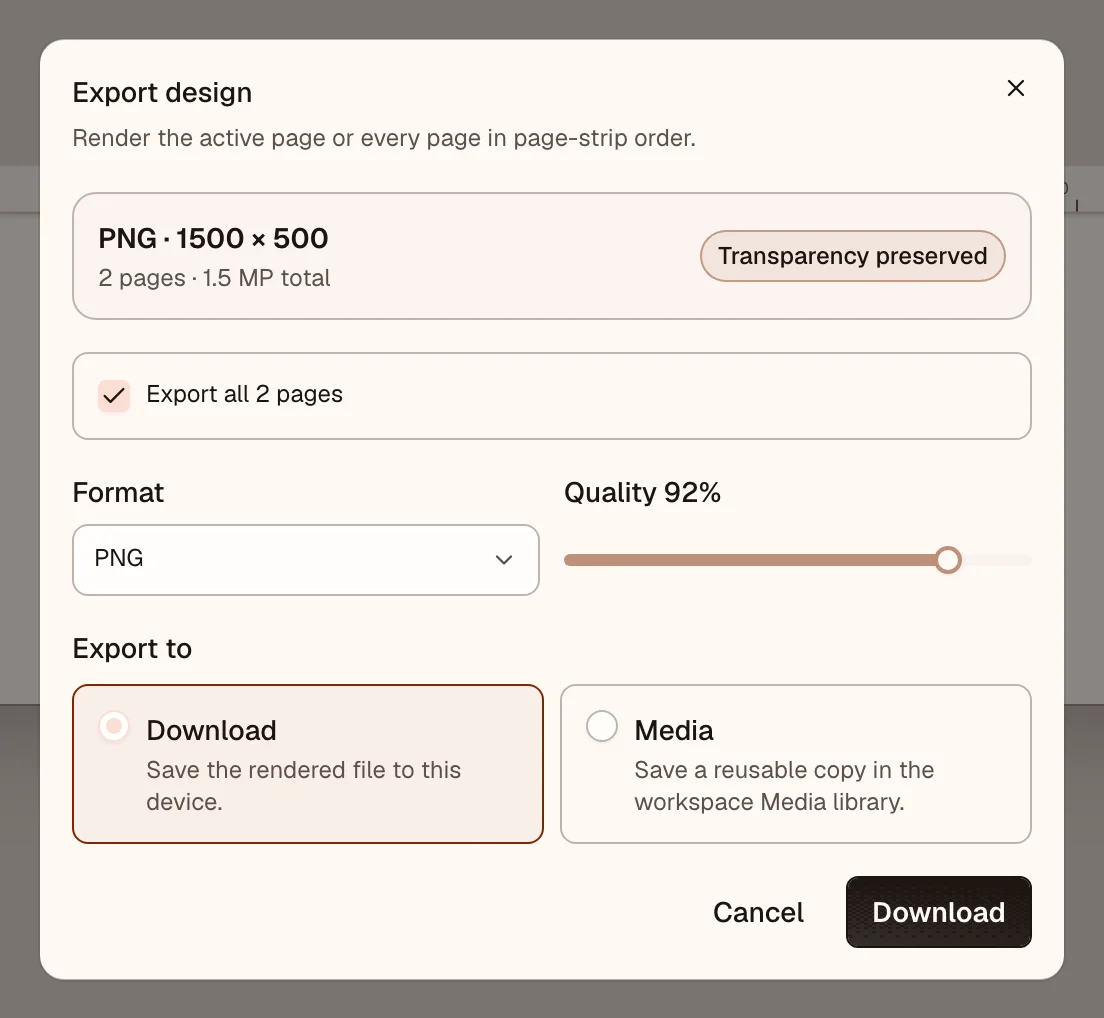
Choose Export after checking the page order, crop, text, and edges at the size you plan to publish.
Choose what to export
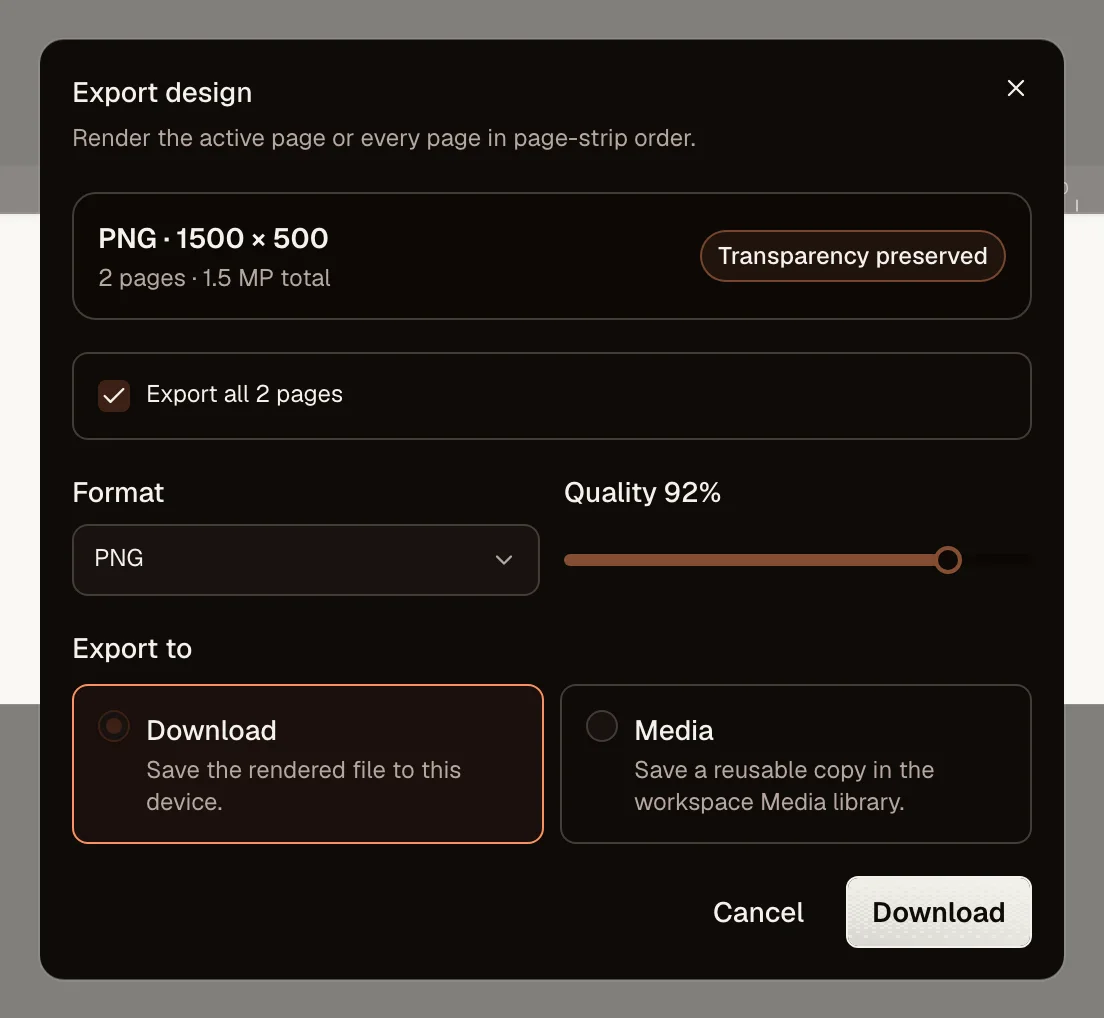
Export the active page or every page in order. Choose PNG, JPEG, or WebP and review the estimated total size before continuing.
- A one-page download produces one image file.
- A multi-page download produces a ZIP with one file per page.
- Saving to Media creates separate workspace files in page order.
Workspace exports in Media retain their source design and page. Editing the source later does not replace an existing export.
Return to a post
When the editor was opened from a post, choose Export and attach. OpenPost adds the exported files in order to the same post, thread part, or thumbnail field.
The return link works for two hours. The editor also keeps a local recovery copy. If it can no longer return to the post, the exported files remain in Media so you can attach them from the composer.
OpenPost checks the current account limits before attaching the files. A design can export successfully even when the selected destination rejects its file count, size, or shape. Adjust the export or destination selection if that check fails.
Publish from the composer
Review the attached files in the composer. Check their order, destination-specific crop or preview, and alt text. Publishing and scheduling happen in the composer, not in Image Editor.
See Create and publish for destination versions and Media requirements for current provider limits.