
 OpenPost
Layers
Add, select, arrange, group, hide, and lock design elements.
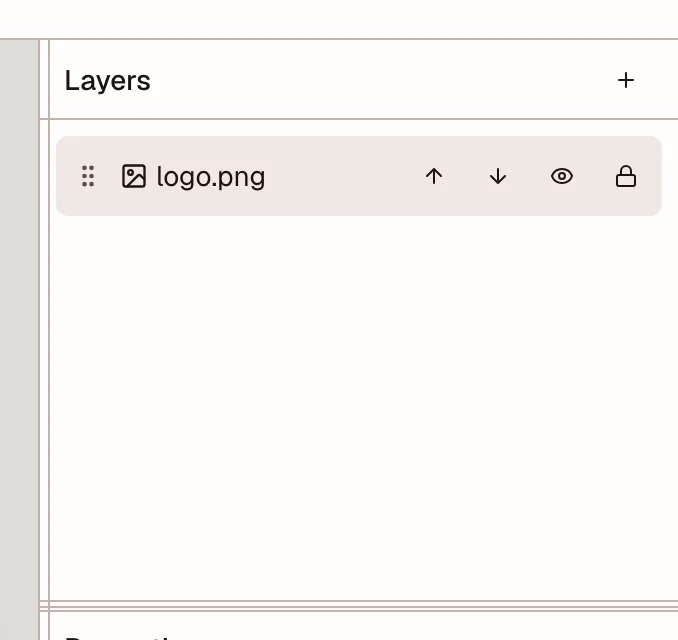
Each text item, image, shape, paint stroke, or group is a layer. Layers near the top of the list appear in front of layers below them.
Add content
Use the left tool rail to add content:
- Media adds workspace files, uploads, camera images, or stock media. It can also replace the selected image.
- Text adds a text layer. Use Properties to set its font, size, color, alignment, spacing, and curve.
- Shapes adds basic shapes and lines.
- Paint draws on the active page.
Drag media onto the canvas when you want to choose its placement. Clicking an item adds it with a default size.
Select and transform
Select a layer on the canvas or in Layers. Drag it to move it. Use the canvas handles to resize or rotate it, or enter exact position, size, rotation, and flip values in Properties.
Select several layers to align or distribute them. Group layers when they should move and resize together. Ungroup them when you need to edit one item again.
Change the stack
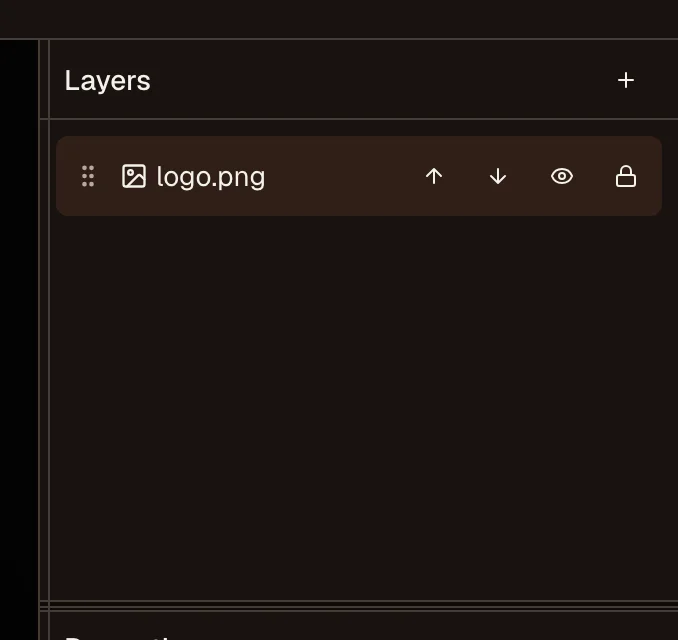
Drag a layer in the Layers panel to change what covers what. Use the eye control to hide it without deleting it. Lock a layer to keep it visible while preventing accidental changes.
Example: add a photo, then add a logo. Put the logo above the photo in Layers and lock the photo before positioning the logo.
Change the selected layer
The Properties panel changes with the selected layer. Image layers expose crop and image adjustments. Text layers expose type controls. Shapes expose their fill and stroke. Common controls include opacity, position, size, rotation, blend mode, shadows, and masks.
Undo and redo include layer changes. If a layer will be reused across designs, save the whole design as a template instead of copying flattened exports.