
 OpenPost
Social integrations
Bluesky

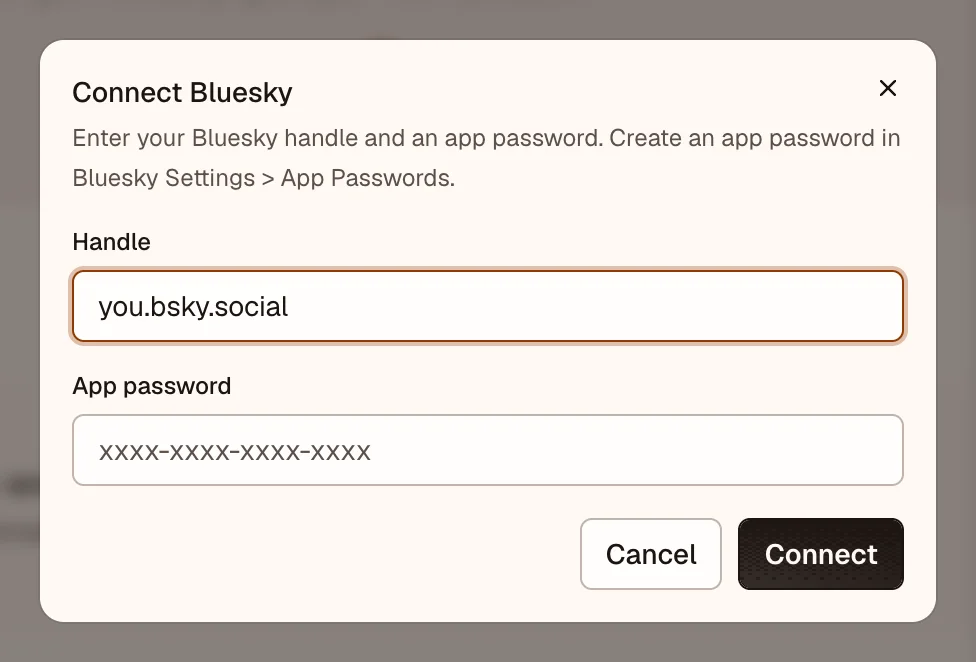
Connect a Bluesky account with its handle and an app password.
Bluesky needs no developer app or callback URL. Each person connects their own account with a Bluesky app password. OpenPost stores the connection for the selected workspace.
Create an app password
- Sign in to the Bluesky app with the account you want to publish from.
- Open Settings → App Passwords. Bluesky may place this under Privacy and Security or Advanced, depending on the client version.
- Create a password named
OpenPostand copy it while it is shown. Use an app password, not your main account password. - Note the account's handle, such as
name.bsky.socialor your custom domain.
Bluesky lets you revoke an app password without changing your main password. See Bluesky's app-password guidance.
Connect and test
- In OpenPost, choose your workspace and open Settings → Workspace → Social accounts.
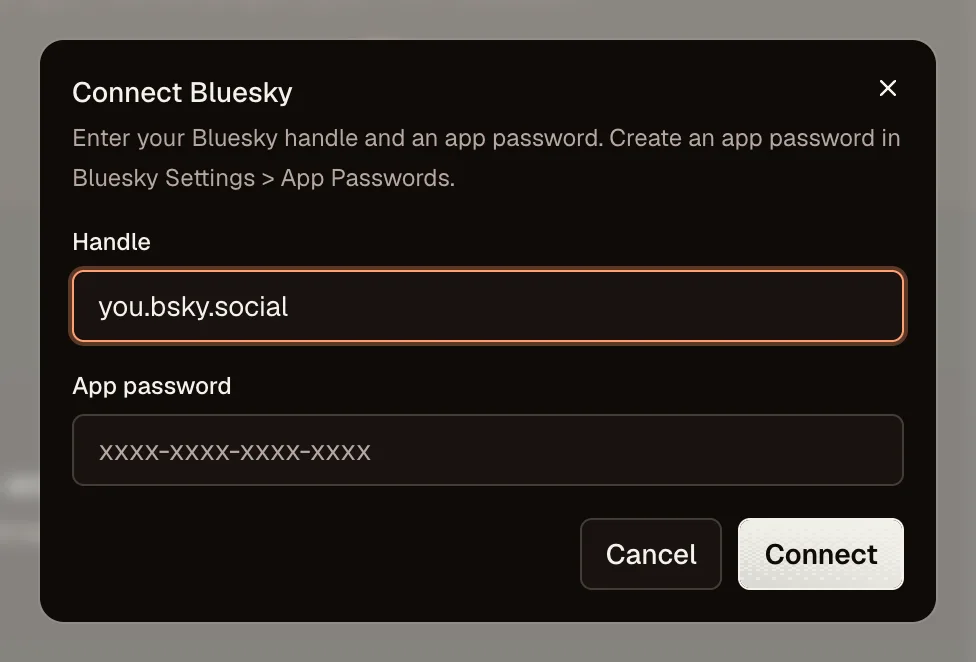
- Select Bluesky. Enter the handle and app password, then connect. Use the handle rather than your email address.
- Create a short draft for the Bluesky account and publish it. Open the resulting post from its publication details to check the text and media on Bluesky.
OpenPost discovers the account's Personal Data Server from its identity record, so you do not enter a server URL. A self-hosted PDS must be reachable by OpenPost over public HTTPS at its host root on port 443.
If the connection fails
- Check the handle and create a fresh app password in Bluesky. A revoked app password cannot reconnect.
- If the account uses a custom PDS, check that its identity record points to the right server and that OpenPost can reach it over HTTPS. OpenPost rejects PDS URLs with credentials, paths, queries, fragments, or custom ports.
- If publishing fails after a successful connection, open the failed rendition in OpenPost. Its provider error is more useful than retrying the login blindly.
Bluesky's AT Protocol account documentation explains how account hosting and connected apps differ.