
 OpenPost
Connect a Page-linked Instagram professional account through Meta OAuth.
OpenPost uses the Instagram API with Facebook Login. It connects an Instagram Business or Creator account linked to a Facebook Page. It does not connect a personal Instagram account through Instagram-only login.
Before you start
- Set
OPENPOST_APP_URLto your instance's public HTTPS origin andOPENPOST_MEDIA_URLto a public HTTPS media address. Meta must fetch media before it can publish it. - Switch the target Instagram account to Business or Creator and link it to a Facebook Page. The person connecting it must be able to manage that Page.
- Have access to a Meta developer app and plan for app review and business verification where Meta requires them. App-role testing in development mode does not grant access to other users.
Configure the Meta app
-
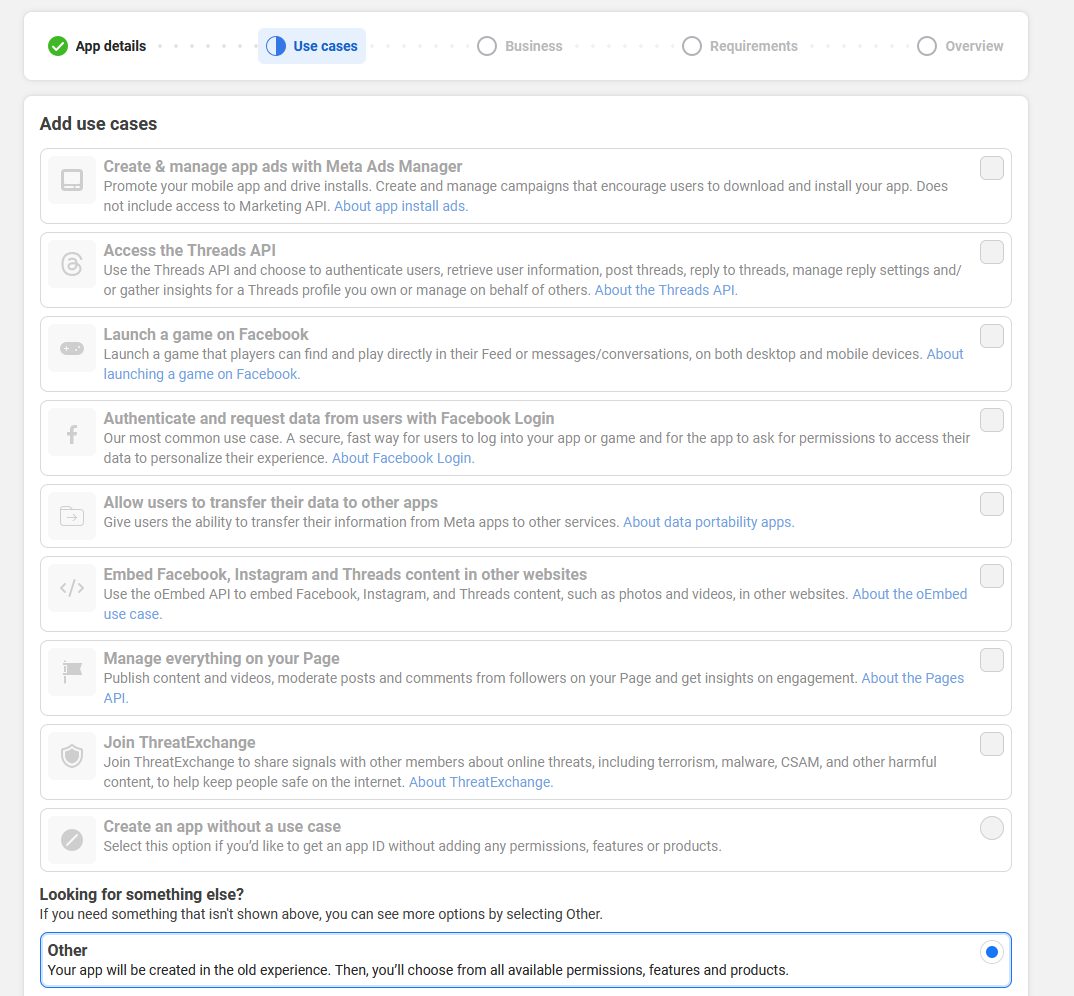
In the Meta for Developers dashboard, create or open an app with Facebook Login and the Instagram API with Facebook Login. This is the Page-linked integration, not Instagram Login for standalone accounts.
-
In Facebook Login → Settings, add this Valid OAuth Redirect URI:
https://post.example.com/api/v1/accounts/instagram/callback -
Request
business_management,instagram_basic,instagram_content_publish,instagram_manage_comments,instagram_manage_messages,instagram_manage_insights,pages_show_list, andpages_read_engagement. OpenPost requests this set during consent. Obtain the permissions and review level needed for your intended users and features. -
Copy App ID and App Secret from App settings → Basic. Confirm the Instagram professional account is linked to the Page returned for your test user.
Meta's Instagram API documentation describes the Page-linked account model and permissions. Its Content Publishing guide describes media requirements.
Save the app in OpenPost
Use this provider entry when saving your app credentials. Replace the example domain with your OpenPost address.
[
  {
    "provider": "instagram",
    "client_id": "your-meta-app-id",
    "client_secret": "your-meta-app-secret",
    "redirect_uri": "https://post.example.com/api/v1/accounts/instagram/callback"
  }
]
Connect and test
- In Settings → Workspace → Social accounts, select Instagram. Sign in with the Facebook identity that manages the linked Page and grant access to it.
- Select the Instagram professional account returned by Meta.
- Publish one image with a short caption. Confirm the result in OpenPost and on Instagram. Test Reels, carousels, and Stories separately if you need them. OpenPost does not support text-only Instagram posts. Optional Comments and replies, Direct messages, and Analytics start disabled per account.
If it does not work
- No Instagram account appears: Verify it is Business or Creator, linked to a Page the signed-in person can manage, and that the Page and Instagram permissions were granted. Check Business Portfolio access if applicable.
- Media creation fails: Fetch a specific uploaded file URL under
OPENPOST_MEDIA_URLfrom outside your network. It must be public HTTPS and return the correct file and media type. - Permission or redirect error: Check app review, the scopes granted in consent, and the exact redirect URI. Reconnect after changing permissions.