
 OpenPost
Mastodon

Connect an account on a Mastodon server, with optional fixed app credentials.
Mastodon accounts belong to individual servers. OpenPost can register an app when someone connects to a public HTTPS server. You can also configure a fixed app for a server your team uses.
Connect a public server
- In OpenPost, choose your workspace and open Settings → Workspace → Social accounts → Mastodon.
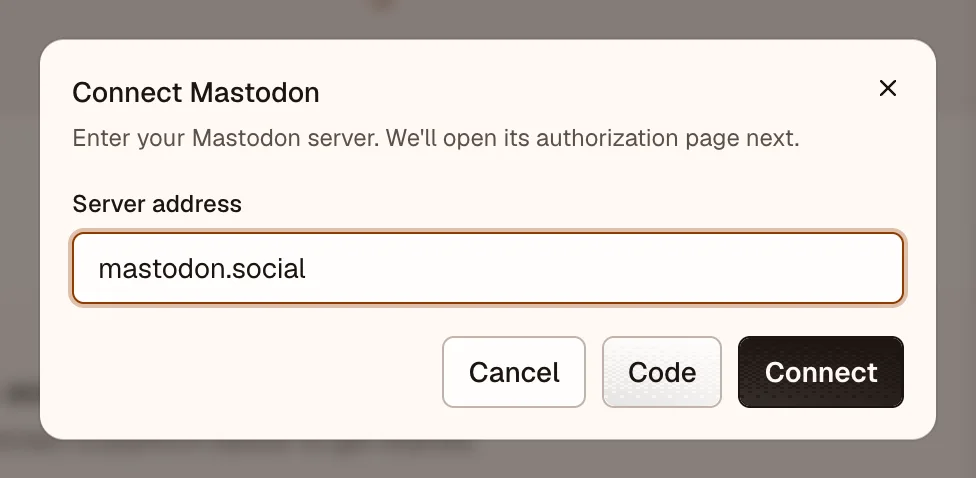
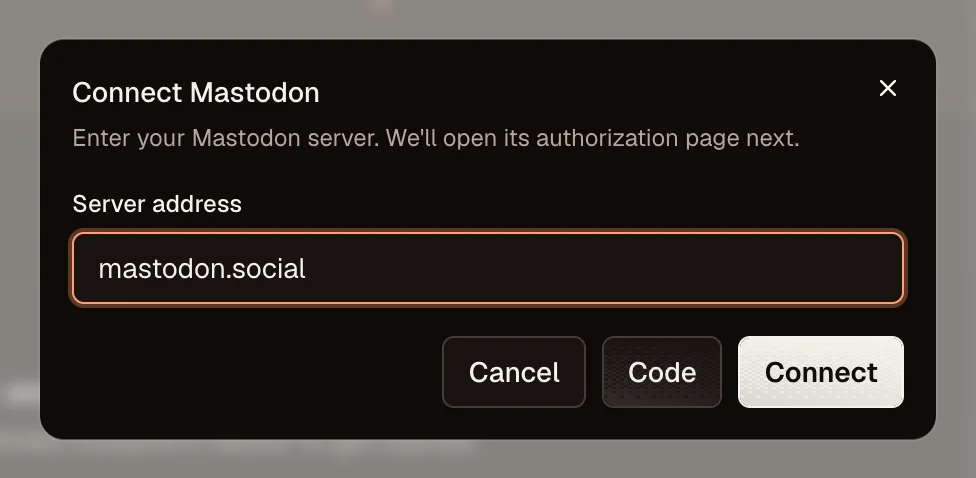
- Select Continue to Mastodon, then enter the address of the server that hosts your account, such as
https://mastodon.social. Do not enter your profile URL. - Continue to the server's authorization page and approve OpenPost.
- By default, Mastodon shows an authorization code. Copy it and return to OpenPost. In the Mastodon connection dialog, select Code, paste it into Authorization code, and select Connect account.
- Publish a short test post and open the resulting link from its publication details.
OpenPost registers the app on that server through POST /api/v1/apps with read write scopes and keeps the client secret encrypted. The default redirect is urn:ietf:wg:oauth:2.0:oob, which makes Mastodon display a code instead of redirecting to a callback. See Mastodon's app registration and authorization documentation.
Configure a fixed server app
Use this path if you want to preconfigure a known server or its app registration endpoint is unavailable to OpenPost.
-
On that Mastodon server, open Preferences → Development → New application. Name the app
OpenPost, addreadandwritepermissions, and registerurn:ietf:wg:oauth:2.0:oobas the redirect URI. Save the app and copy its client ID and secret. Server menus can differ. -
Add the server and credentials to
MASTODON_SERVERSin your server environment. Keep the JSON on one line in.env:MASTODON_SERVERS=[{"name":"Team server","client_id":"your-client-id","client_secret":"your-client-secret","instance_url":"https://social.example"}] -
Recreate OpenPost with
docker compose up -d --force-recreate openpostto load the changed environment. The server should appear as a choice when connecting Mastodon.
You can instead save a Mastodon app in Instance → Configuration → Provider apps. If you change MASTODON_REDIRECT_URI, register that exact URI on the Mastodon app too. The default out-of-band flow needs no public callback.
If the connection fails
- Enter the server origin, for example
https://social.example, without a username or path. OpenPost accepts public HTTPS instances. - If app registration fails, ask the server administrator whether it accepts new OAuth apps, or configure a fixed app for that server.
- If Mastodon rejects the authorization code, start the connection again and copy the new code. Check that the app's registered redirect URI matches
MASTODON_REDIRECT_URI. - If a fixed server is missing, check the
MASTODON_SERVERSJSON and the container logs after restart.