
 OpenPost
Telegram bot

Connect a Telegram channel or group to your self-hosted instance.
OpenPost uses one bot owned by the instance. Each workspace connects a specific channel or group by sending a one-time command there. Telegram must be able to reach your OpenPost HTTPS webhook.
Telegram currently also needs an administrator readiness record in OpenPost, even on self-hosted instances. Registering a bot with BotFather and saving its token is not enough to connect or publish. Complete the administrator steps below before inviting workspace members to use it.
Create the bot and prepare the chat
- In Telegram, open @BotFather, send
/newbot, and follow its prompts. Copy the bot token and note its username. Telegram's BotFather guide explains this step. - Add the bot to the channel or group where it should publish. For a channel, make it an administrator with permission to post messages. For a group, it must be allowed to send messages. OpenPost verifies those permissions when connecting and again before publishing.
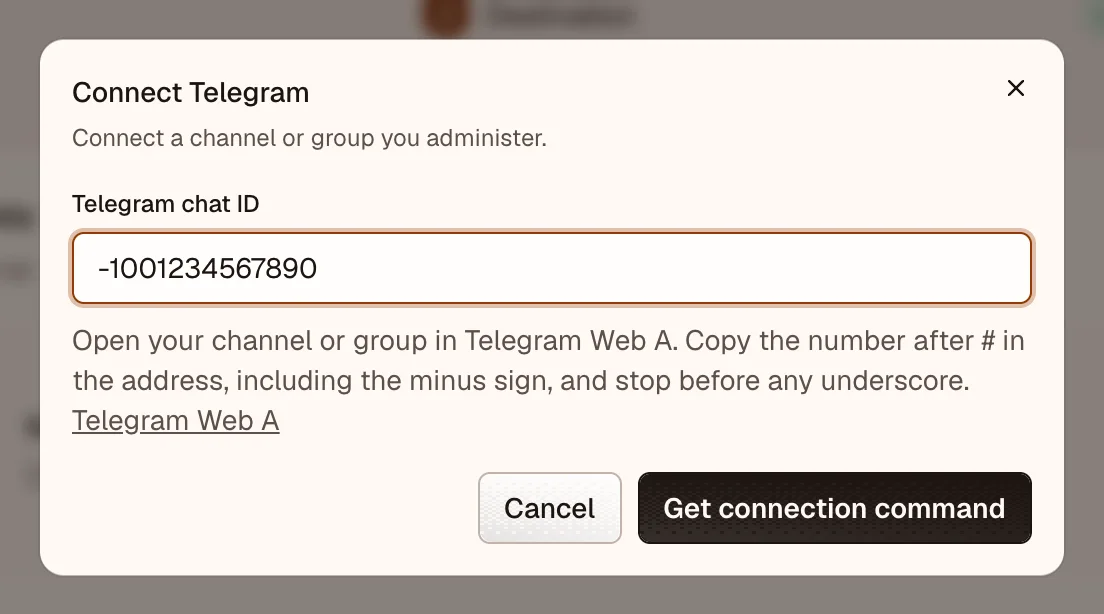
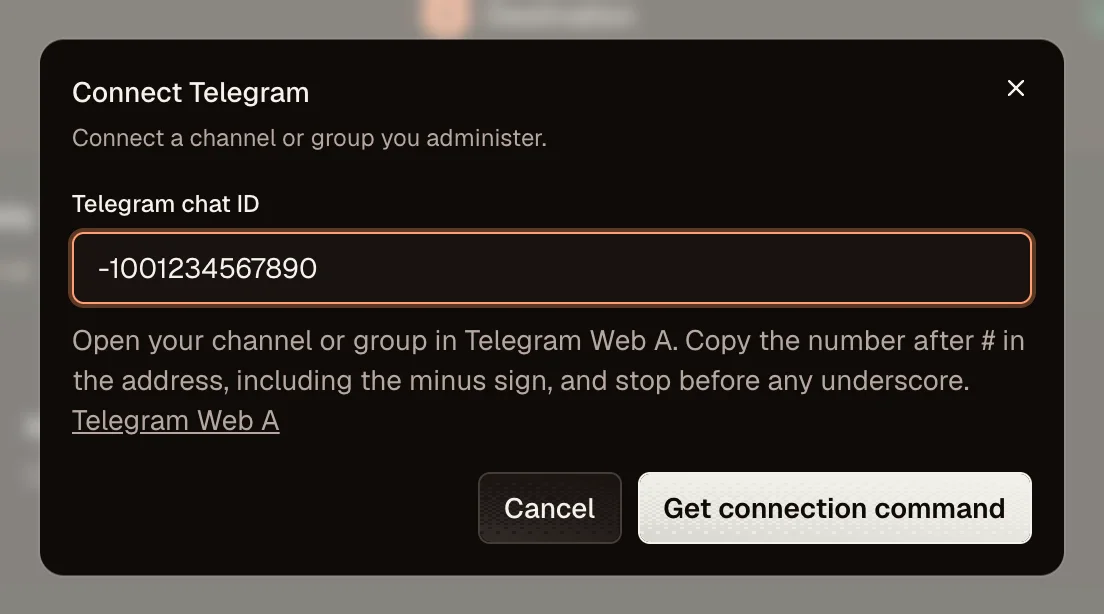
- Find the chat's numeric ID. In Telegram Web A, open that chat and copy the number after
#in the address, including the minus sign. Stop before any underscore. It often starts with-100for a channel or supergroup.
Configure OpenPost
Set OPENPOST_PUBLIC_URL to your public HTTPS origin, such as https://post.example.com. Telegram sends updates to https://post.example.com/api/v1/webhooks/telegram; your reverse proxy must forward that path to OpenPost.
Set OPENPOST_PROVIDER_APPS in the server environment. The current Instance configuration form does not accept Telegram bot credentials:
OPENPOST_PROVIDER_APPS=[{"provider":"telegram","bot_token":"your-bot-token","bot_username":"your_bot","webhook_secret":"a-long-random-secret"}]If OPENPOST_PROVIDER_APPS already contains other providers, add this object to the existing JSON array instead of replacing it.
Keep the token and webhook secret private. Use letters, numbers, _, or - for the webhook secret, as required by Telegram's secret_token field. Recreate OpenPost with docker compose up -d --force-recreate openpost to load the changed environment.
Complete the administrator readiness steps
- As an instance administrator, record the bot's registration and approval status through the provider readiness API workflow. These records belong to OpenPost; they do not mean Telegram requires an OAuth app review.
- Once connection readiness passes, restart OpenPost. It registers the HTTPS webhook on startup. If readiness is missing, registration is skipped. Check
docker compose logs --tail=100 openpostfor the result and confirm your public URL is reachable. - Connect a test chat using the steps below. An administrator can perform the first publishing tests with
certification_testintent, then record the local and live results for immediate and scheduled publishing. Normal publishing requires current evidence for the operation being used.
This is currently a session-authenticated administrator API workflow. There is no readiness switch in workspace settings. If you cannot complete it yet, keep Telegram unavailable to workspace members until the records and tests are in place.
Connect and test
- In OpenPost, choose the workspace and open Settings → Workspace → Social accounts → Telegram.
- Enter the numeric chat ID and generate the command. OpenPost shows a one-time
/connectcommand, valid for 15 minutes. - Send the command in that exact Telegram chat. Then refresh the social accounts list to confirm the chat appears.
- After the administrator has completed the readiness tests, publish a short text post to that destination and check both Telegram and the publication result. Test scheduled or media posts after the first post succeeds.
The bot token stays at the instance level. Workspace accounts and publication jobs use the verified chat connection, not a copy of the bot token.
If the connection fails
- A
503or unavailable connection can mean the bot configuration, administrator approval record, or webhook readiness is missing. Check provider readiness, the public HTTPS URL, and startup logs. - An invalid chat ID needs the exact number from the target chat. Do not paste a
t.melink or channel name. - The command works only once, for the chat ID entered, and expires after 15 minutes. Generate a new command if needed.
- If the account connects but cannot publish, check that the bot still belongs to the chat and has posting permission. Telegram channel permissions differ from group permissions.
Telegram's Bot API documents webhook delivery and chat administrator rights.