
 OpenPost
Discord

Connect a channel webhook or an instance-owned Discord bot.
Choose a webhook for one fixed channel. Choose bot mode when a workspace needs to select channels in a Discord server. Both modes can publish; the bot needs a Discord developer application and OAuth setup.
Webhook: create it in Discord
An incoming webhook needs no Discord developer app, bot, or OAuth callback. Someone who can manage webhooks in the target channel must create the URL.
- Open the target channel's settings in Discord and choose Integrations → Webhooks.
- Create a webhook, give it a name people will recognize, and confirm that it points to the intended channel.
- Copy the webhook URL. Keep it private. Anyone with the URL can post to that channel until you delete or regenerate the webhook.
Discord's incoming webhook guide explains this one-way connection. Creating a webhook requires the MANAGE_WEBHOOKS permission.
Webhook: connect and test
- In OpenPost, choose your workspace and open Settings → Workspace → Social accounts → Discord.
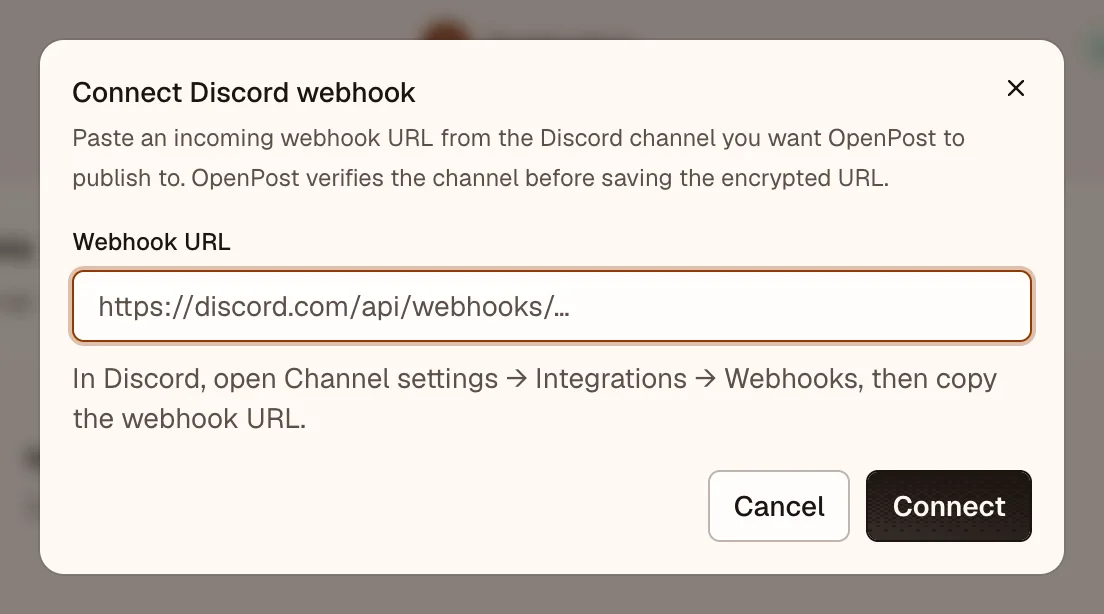
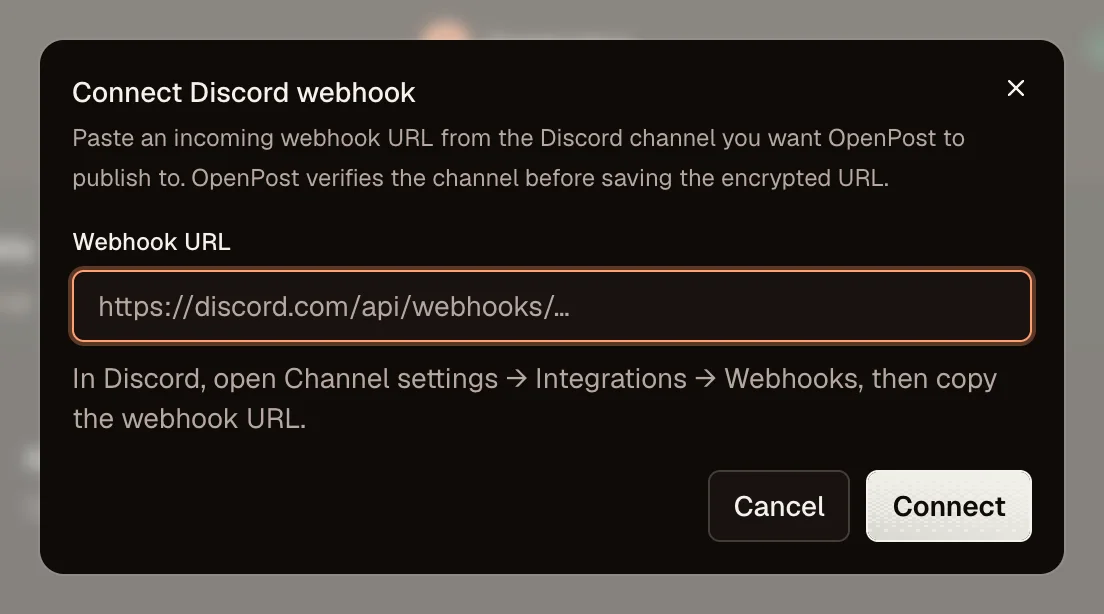
- Choose the webhook connection, paste the complete HTTPS Discord webhook URL, and connect. OpenPost checks the webhook and saves its URL encrypted.
- Publish a short message to the connected account. Check the target channel and the publication's result in OpenPost. Try an attachment only after text delivery works.
Webhook posts go to the channel bound to that URL. OpenPost supports text, scheduled posts, and up to 10 files per post. It caps each file at 10 MiB; Discord may impose other limits. A webhook cannot read the channel or provide Inbox and analytics data.
Bot: configure a Discord app
Bot mode currently requires administrator approval records and publishing test evidence in OpenPost, including on self-hosted instances. Use a channel webhook if you only need to publish to one channel and do not need the bot workflow.
-
In the Discord Developer Portal, create an application. Copy its Application ID and Client Secret, then open Bot and create or reset the bot token. Keep the secret and token private.
-
Under OAuth2, register
https://post.example.com/api/v1/accounts/discord/callbackas a redirect, replacing the domain with yourOPENPOST_APP_URLhost. OpenPost requests theidentify,guilds, andbotscopes during connection. -
Set the instance provider app in the server environment, then recreate OpenPost with
docker compose up -d --force-recreate openpost:OPENPOST_PROVIDER_APPS=[{"provider":"discord","connection_mode":"bot","client_id":"your-application-id","client_secret":"your-client-secret","bot_token":"your-bot-token"}] -
As an instance administrator, complete the provider readiness API workflow. Record the bot app's approval status before a normal connection. This is a session-authenticated administrator API workflow, not a workspace setting.
-
Once connection readiness passes, open Settings → Workspace → Social accounts → Discord, choose Connect Discord bot, and authorize it for the server. The person connecting it needs permission to manage that server. Select the server in OpenPost, then choose a channel when composing a post.
-
An administrator can use
certification_testintent for the first publishing tests, then record current local and live evidence for immediate and scheduled publishing. After readiness passes, publish a short message through the normal composer. If an attachment fails, check the bot's Attach Files permission in that channel. Channel-specific overrides can remove permissions granted at installation.
If OPENPOST_PROVIDER_APPS already contains other providers, add the Discord object to the existing JSON array instead of replacing it.
OpenPost requests View Channel, Send Messages, Embed Links, Attach Files, and Read Message History for the bot. Discord's bot setup guide and OAuth2 permissions guide explain those portal settings. The current OpenPost Instance form does not accept Discord bot tokens, so use the environment registry.
If delivery fails
- Check the channel and webhook in Integrations → Webhooks. A deleted or regenerated webhook needs a new connection in OpenPost.
- Paste the complete URL from Discord, including its token. OpenPost accepts Discord's HTTPS webhook hosts and rejects lookalike domains, custom ports, and extra URL parts.
- For an attachment failure, retry with a smaller supported file. For any failed post, open its rendition to see the provider error before retrying.
- For bot mode, compare the registered redirect with
OPENPOST_APP_URL, then check the bot token and its channel permissions. If a server is not offered, confirm the bot was installed there and the connecting person can manage it.
Discord's webhook API reference describes webhook permissions and payloads.