
 OpenPost
Configure Meta OAuth and connect a Facebook Page to OpenPost.
OpenPost connects Facebook Pages, not personal timelines. A person signs in through Meta, grants Page permissions, and chooses a Page they can manage.
Before you start
- Set
OPENPOST_APP_URLto your instance's public HTTPS origin. SetOPENPOST_MEDIA_URLto a public HTTPS address before testing image, video, or Story posts. - Have a Meta developer account and a Facebook Page that your test user can manage. Pages in a Business Portfolio may require full control and business access.
- Plan for Meta app review and, where required, business verification before people outside your app roles can connect. Development-mode testing with app-role users is not production approval.
Configure the Meta app
-
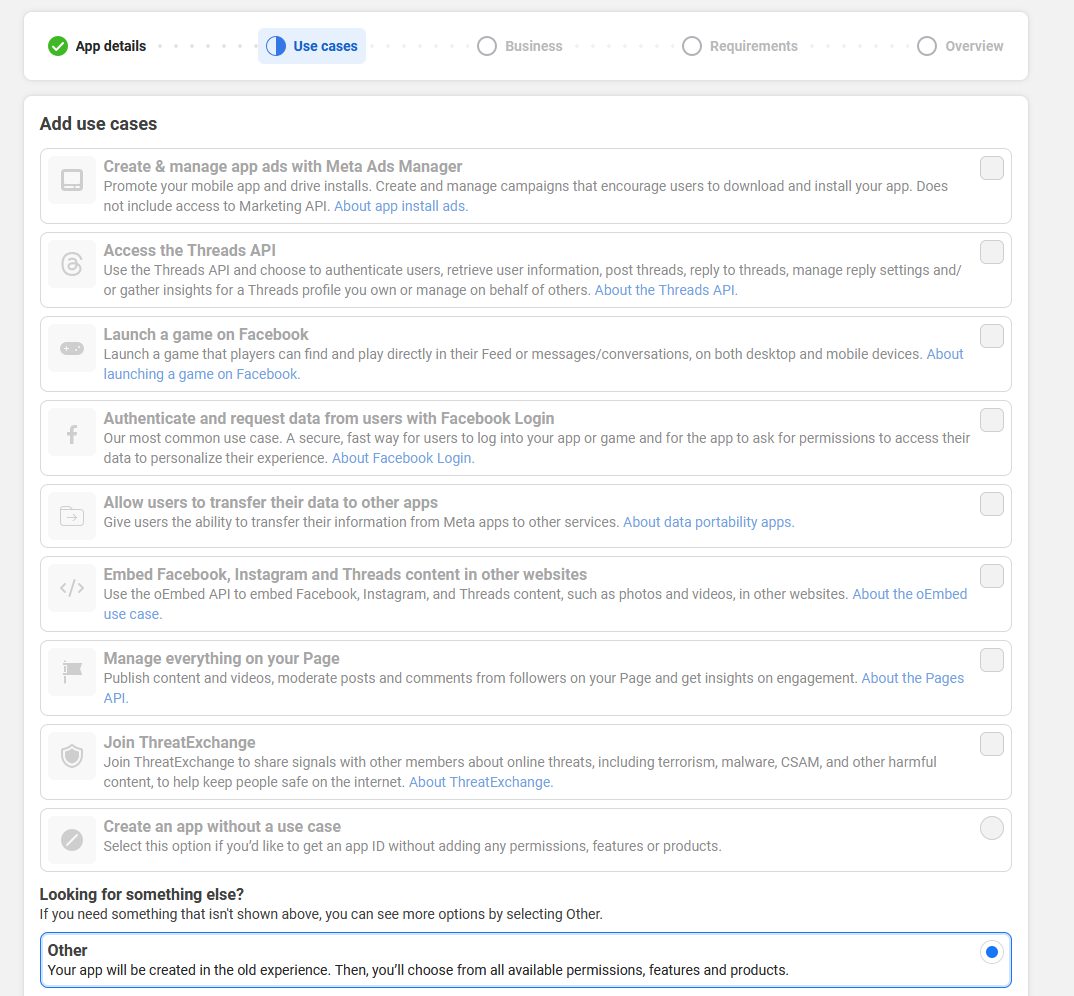
In the Meta for Developers dashboard, create an app that supports Facebook Login, or open one you control. Add the Facebook Login product or use case offered by the dashboard.
-
In Facebook Login → Settings, add this Valid OAuth Redirect URI:
https://post.example.com/api/v1/accounts/facebook/callback -
Request
business_management,pages_show_list,pages_read_engagement,pages_manage_engagement,pages_manage_posts, andpages_messaging. OpenPost asks for these during connection. Complete Meta's review for the permissions and people you intend to support. If you do not use Direct messages, the app may still show a request forpages_messagingbecause OpenPost's Facebook authorization flow includes it. -
In App settings → Basic, copy the App ID and App Secret. Confirm your test user has a role on the app while it is in development mode and can manage the target Page.
Meta's Pages API overview and Facebook Login documentation describe Page access and OAuth configuration.
Save the app in OpenPost
Use this provider entry when saving your app credentials. Replace the example domain with your OpenPost address.
[
  {
    "provider": "facebook",
    "client_id": "your-meta-app-id",
    "client_secret": "your-meta-app-secret",
    "redirect_uri": "https://post.example.com/api/v1/accounts/facebook/callback"
  }
]
Connect and test
- In Settings → Workspace → Social accounts, select Facebook. Sign in as the person who manages the Page and grant the requested permissions.
- Choose the Page returned by Meta. Publish a short text test and confirm its status in OpenPost and on the Page.
- Test an image or video separately if you need media publishing. Meta fetches the file from your public HTTPS media URL. Optional Comments and replies, Direct messages, and Analytics start disabled per Page; enable and verify only the features your approved app supports.
If it does not work
- Redirect mismatch: Compare the Meta Valid OAuth Redirect URI, the JSON value, and
OPENPOST_APP_URLexactly. - No Page appears: Confirm that the signed-in person can manage it, gave access to it in the consent flow, and that the app has the Page permissions. Check Business Portfolio access if applicable.
- Connected but a post fails: Read Meta's permission or media error. Confirm
pages_manage_postsis granted and, for media, fetch the URL from outside your network. Reconnect after changing permissions.