
 OpenPost
Threads

Create a Threads API app and connect a Threads account to OpenPost.
OpenPost uses the Threads API and its own OAuth callback. A Threads app is configured separately from Facebook Login, even if you use the same Meta developer account.
Before you start
- Set
OPENPOST_APP_URLto your instance's public HTTPS origin. SetOPENPOST_MEDIA_URLto a public HTTPS address if you will publish images, videos, or carousels. - Have a Meta developer account and a Threads account for testing.
- Check Meta's app mode, tester roles, permission access, and review requirements before inviting other users. A successful test connection does not establish production access.
Configure the Threads app
-
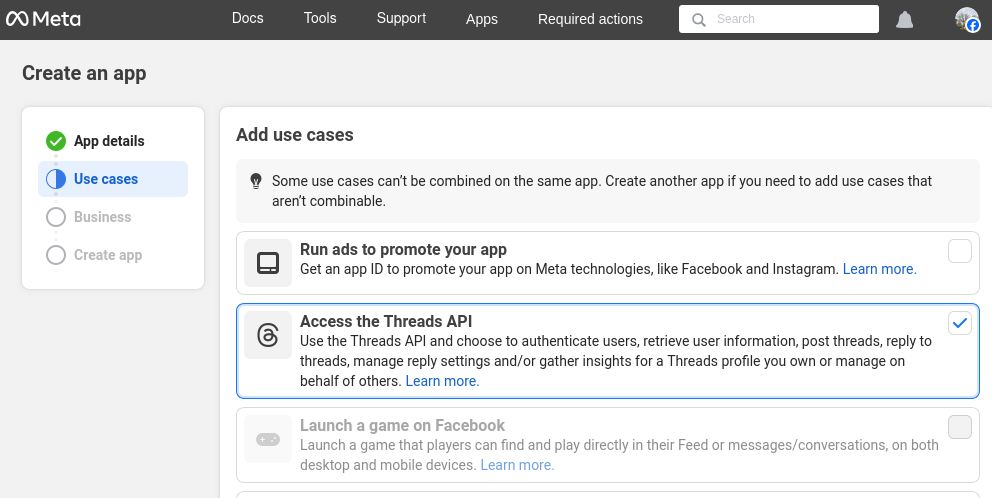
In the Meta for Developers dashboard, create an app with the Threads API use case or add the Threads API product to an eligible app. Open its Threads API settings.
-
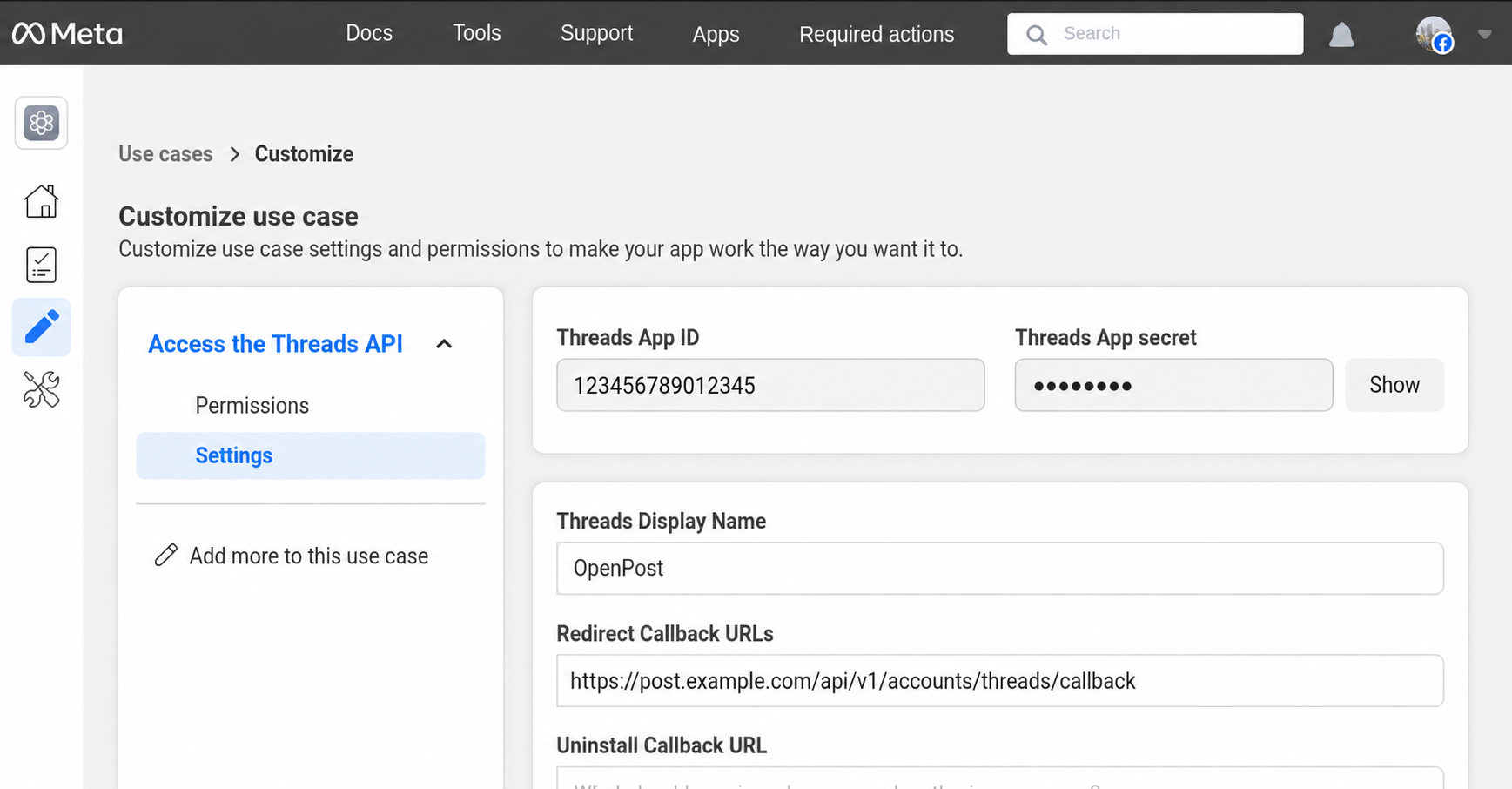
Add this Redirect URL for OAuth:
https://post.example.com/api/v1/accounts/threads/callback -
Configure access for
threads_basic,threads_content_publish,threads_manage_replies,threads_manage_insights, andthreads_location_tagging. OpenPost requests these during authorization. Complete Meta's review for features and users beyond the app's test roles. -
For a development app, open App roles → Roles, add the Threads account as a Threads Tester, and send the invitation. Sign in to that Threads account, open Settings → Account → Website permissions → Invites, and accept it. The account must accept the invitation before it can authorize the app.
-
Copy the Threads app's App ID and App Secret from its settings.
Meta's Threads API documentation and official Threads API collection describe setup, consent, and publishing.
Save the app in OpenPost
Use this provider entry when saving your app credentials. Replace the example domain with your OpenPost address.
[
  {
    "provider": "threads",
    "client_id": "your-threads-app-id",
    "client_secret": "your-threads-app-secret",
    "redirect_uri": "https://post.example.com/api/v1/accounts/threads/callback"
  }
]
Connect and test
- In Settings → Workspace → Social accounts, select Threads and complete the Threads consent flow.
- Publish a short text post. Confirm its status in OpenPost and open it on Threads.
- If you need media, publish one image next. Meta fetches media from your public HTTPS address. Test carousels and other features separately. Optional Comments and replies and Analytics start disabled per account; location tagging requires its own granted permission.
If it does not work
- OAuth fails: Compare the Threads API redirect URL with the JSON and public
OPENPOST_APP_URLexactly. Check the app's tester roles, mode, and permissions. - Text works but media fails: Fetch the exact public media URL from outside your network and check HTTPS, file bytes, and media type. A localhost or private URL cannot work.
- Replies, insights, or locations are unavailable: Check the corresponding Threads permission and account grant. Reconnect accounts authorized before that permission was added.